
New to WallD
How to Get Started with WallD on Mac: A Complete Beginner's Guide
Browse live wallpapers, download the free Mac app, and get your first animated desktop in minutes
 Anurag, founder of WallD
Get your first live wallpaper on Mac with WallD in 4 simple steps. Browse thousands of animated wallpapers as a guest, download the free Mac app, create your account, and apply stunning backgrounds to your desktop - with screenshots at every step.
Step 1 - Visit walld.app and explore the library
Head to walld.app on your desktop and click Explore in the top navigation. You'll land on the full wallpaper feed at walld.app/explore - no signup needed, just browse as a guest and check it out. Note that walld.app/explore is designed for desktop, so open it on your Mac.
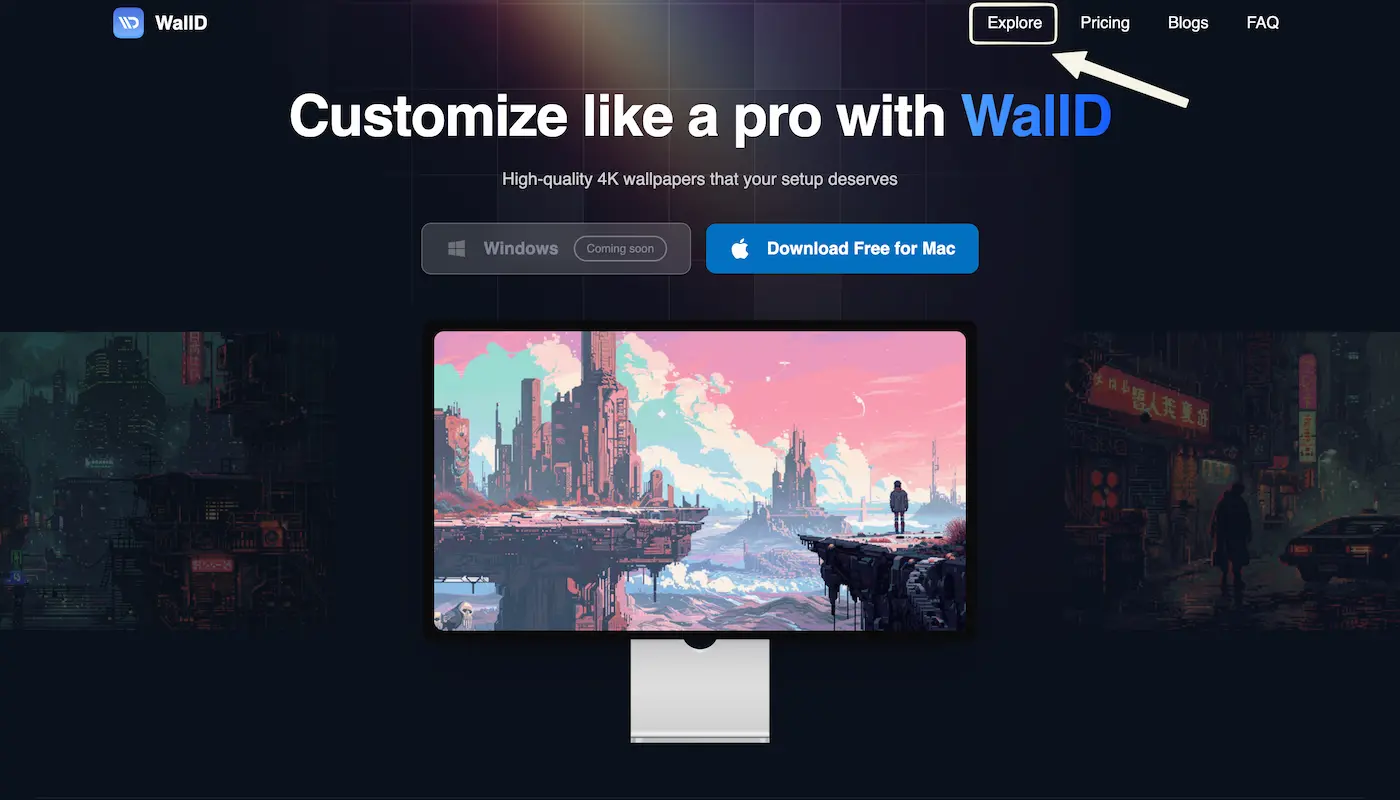
Click "Explore" in the top navigation to open the wallpaper feed. No account needed
Scroll through the feed and click any wallpaper to preview it. You can see the title, creator, tags, resolution, and a live preview without logging in.
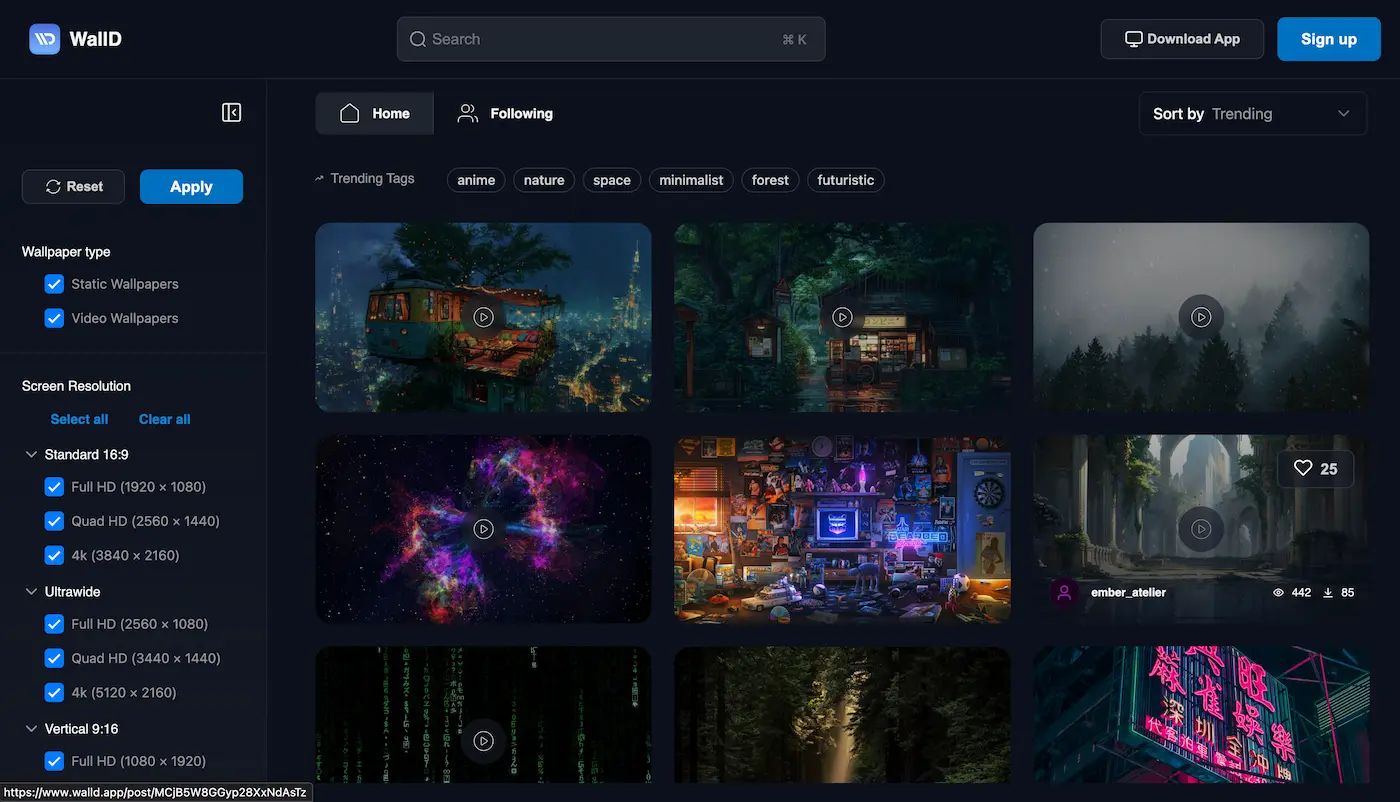
walld.app/explore - the full community wallpaper feed, no account needed
You can't download wallpapers from the browser
If you try to download on walld.app/explore, a popup appears: "Enhance your Wallpaper experience with the app - Download full-resolution wallpapers and apply them instantly." The app is required to download and apply wallpapers - we'll get it in the next step.
Step 2 - Download the WallD app
The WallD app is what makes wallpapers go live on your Mac desktop. Click Download App in the top right of walld.app/explore - or the blue Download Free for Mac button on walld.app.
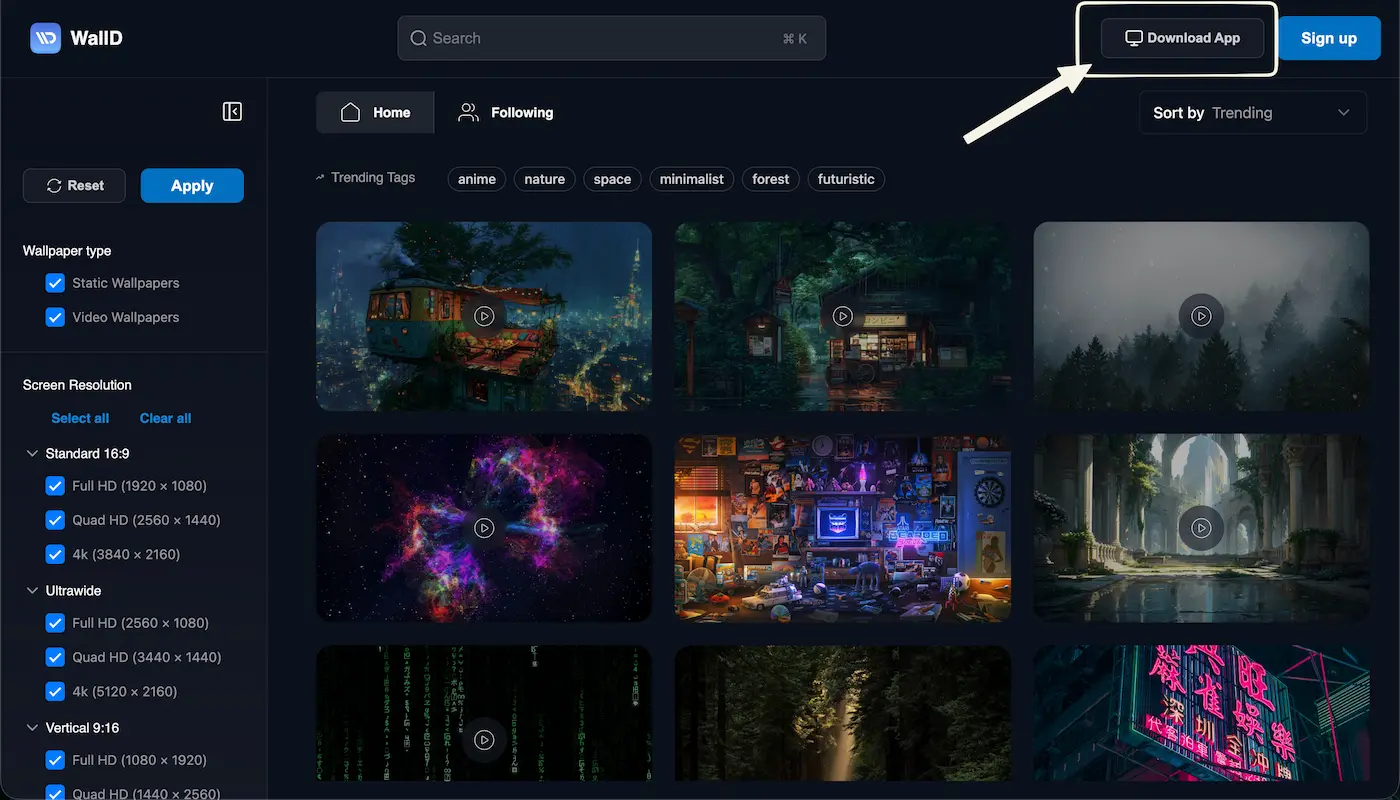
Click "Download App" in the top right of walld.app/explore
Either way, a modal appears with two options:
- Download for macOS (Apple Silicon) - for M1, M2, M3, M4 Macs
- Download for macOS (Intel-based Macs) - for older Intel Macs
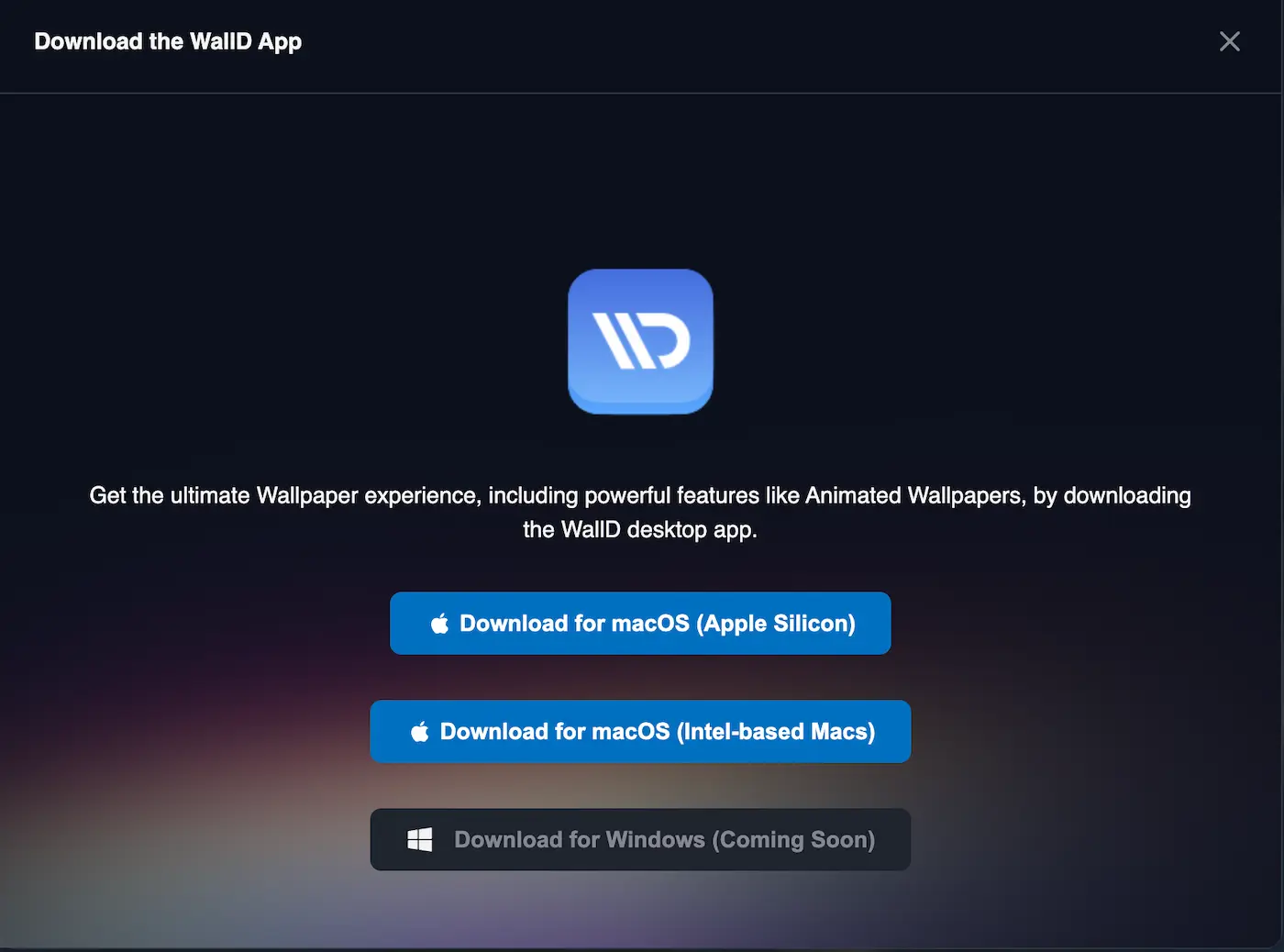
Choose the right version for your Mac: Apple Silicon (M1, M2, M3, or M4) or Intel.
Not sure which one you have? Click the Apple menu, then select About This Mac. If it says Apple M1, M2, M3, or M4, choose Apple Silicon. If it says Intel Core, choose Intel.
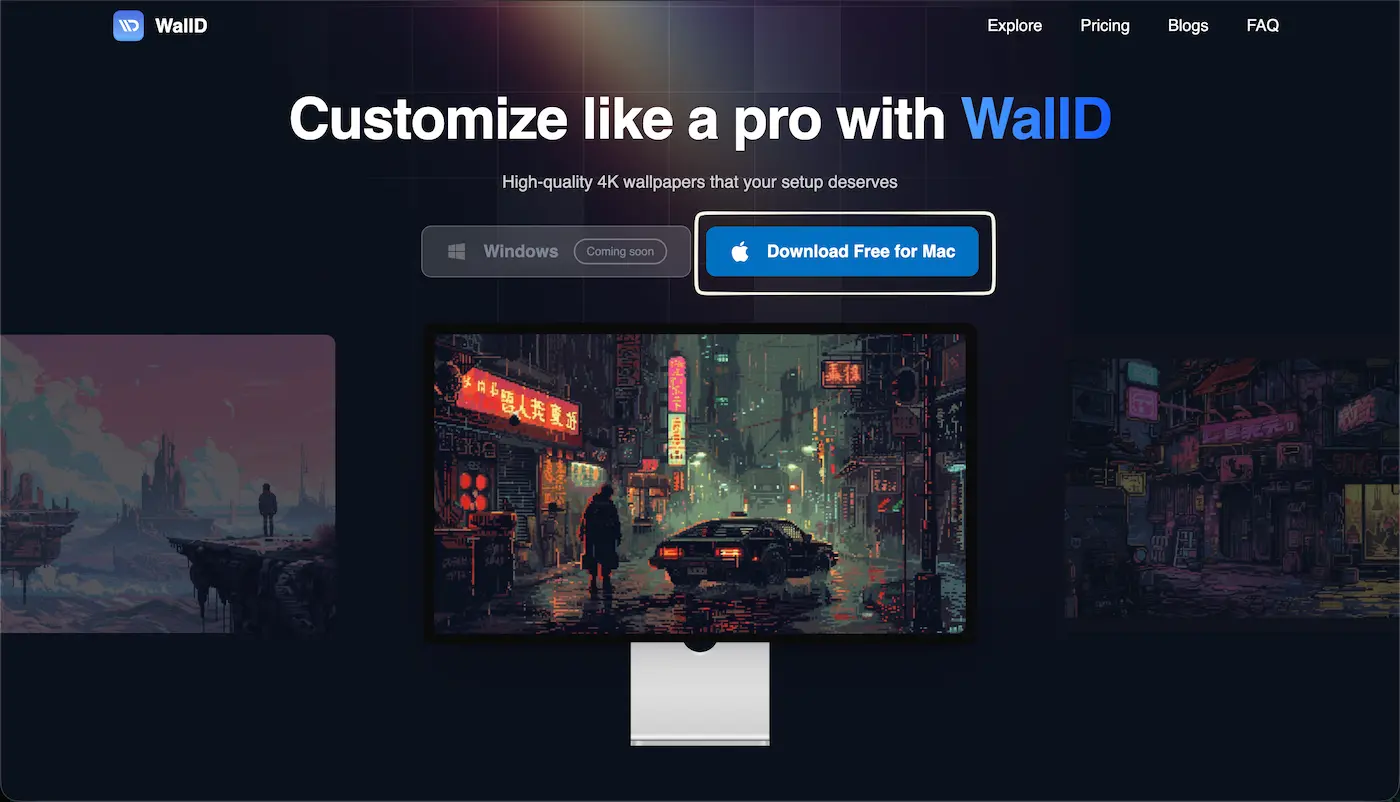
Click "Download Free for Mac" on walld.app
Step 3 - Install the app and sign in
Locate the downloaded file in your Downloads folder and double click it. Drag the WallD icon into your Applications folder, then open WallD from Applications.
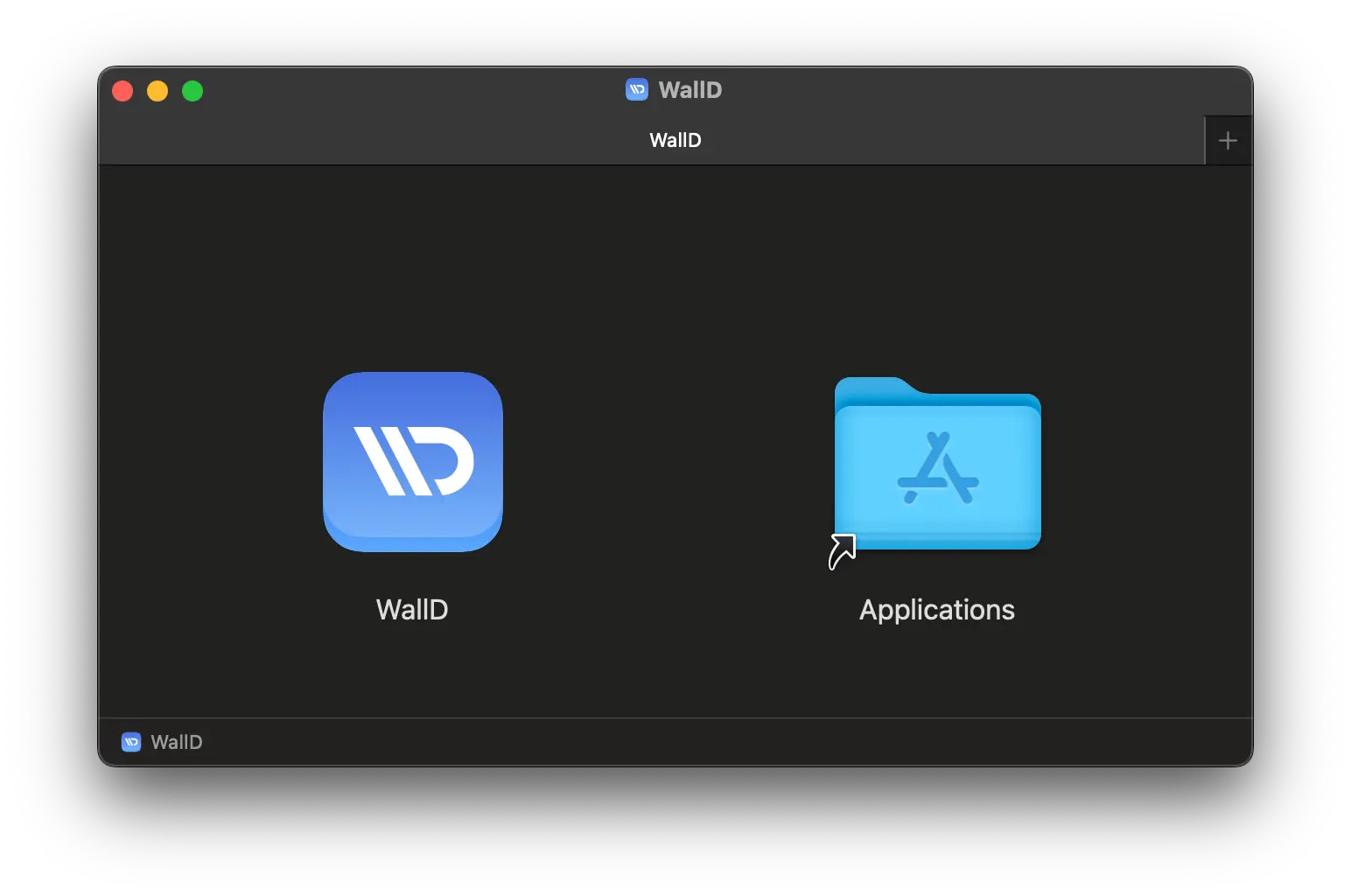
Drag WallD into your Applications folder
macOS will ask you to confirm opening an app downloaded from the internet. Click Open to proceed.
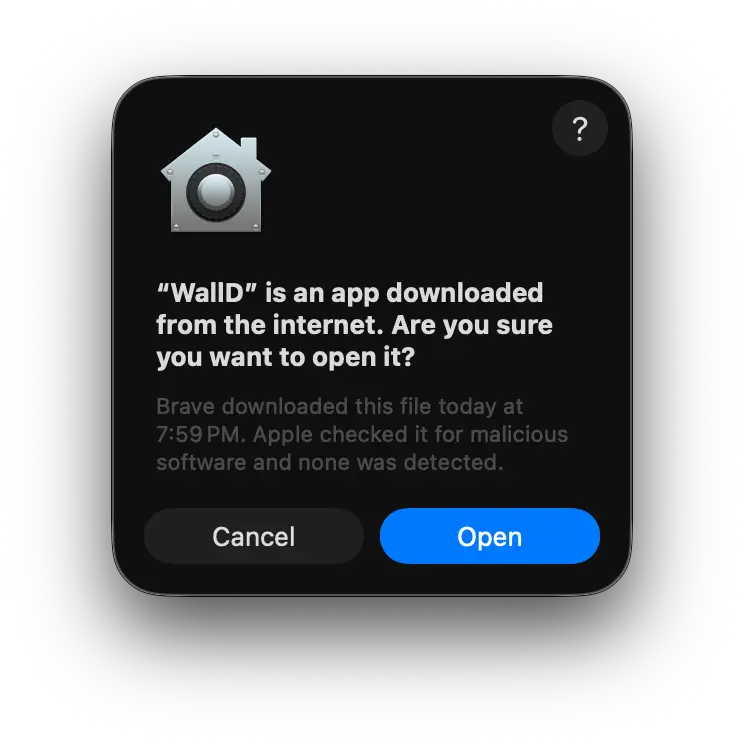
Click Open. Apple has already checked it for malicious software
WallD opens straight to the wallpaper feed, so you can start browsing right away. When you find a wallpaper you want to apply, click it. You’ll be prompted to sign up at that point.
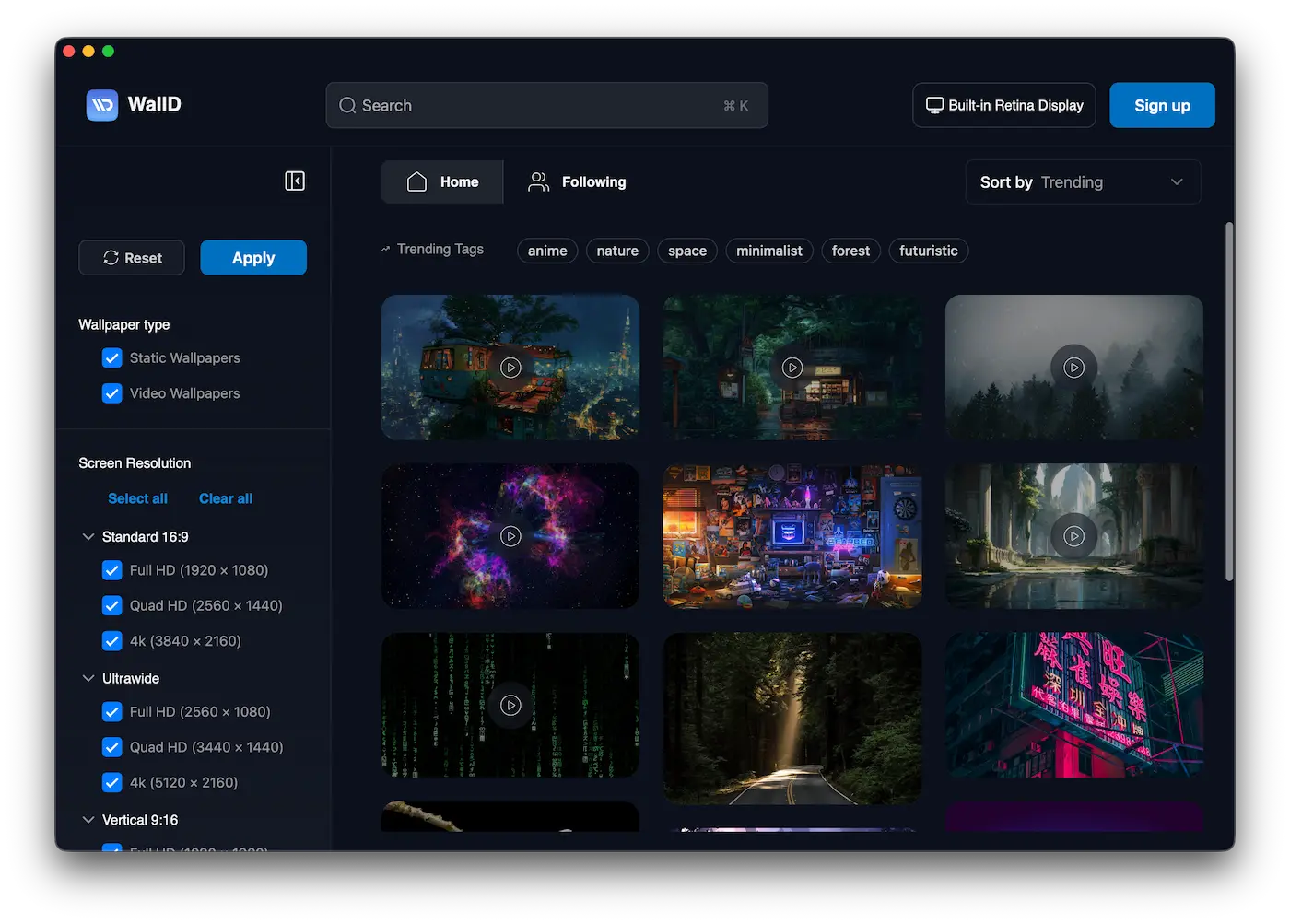
WallD opens straight to the feed - browse first, sign up when you're ready to apply
To apply a wallpaper, create a free account with your email and username, or sign up with Google. If you already have an account, click Log in. There's also a Continue as Guest option if you just want to keep browsing.
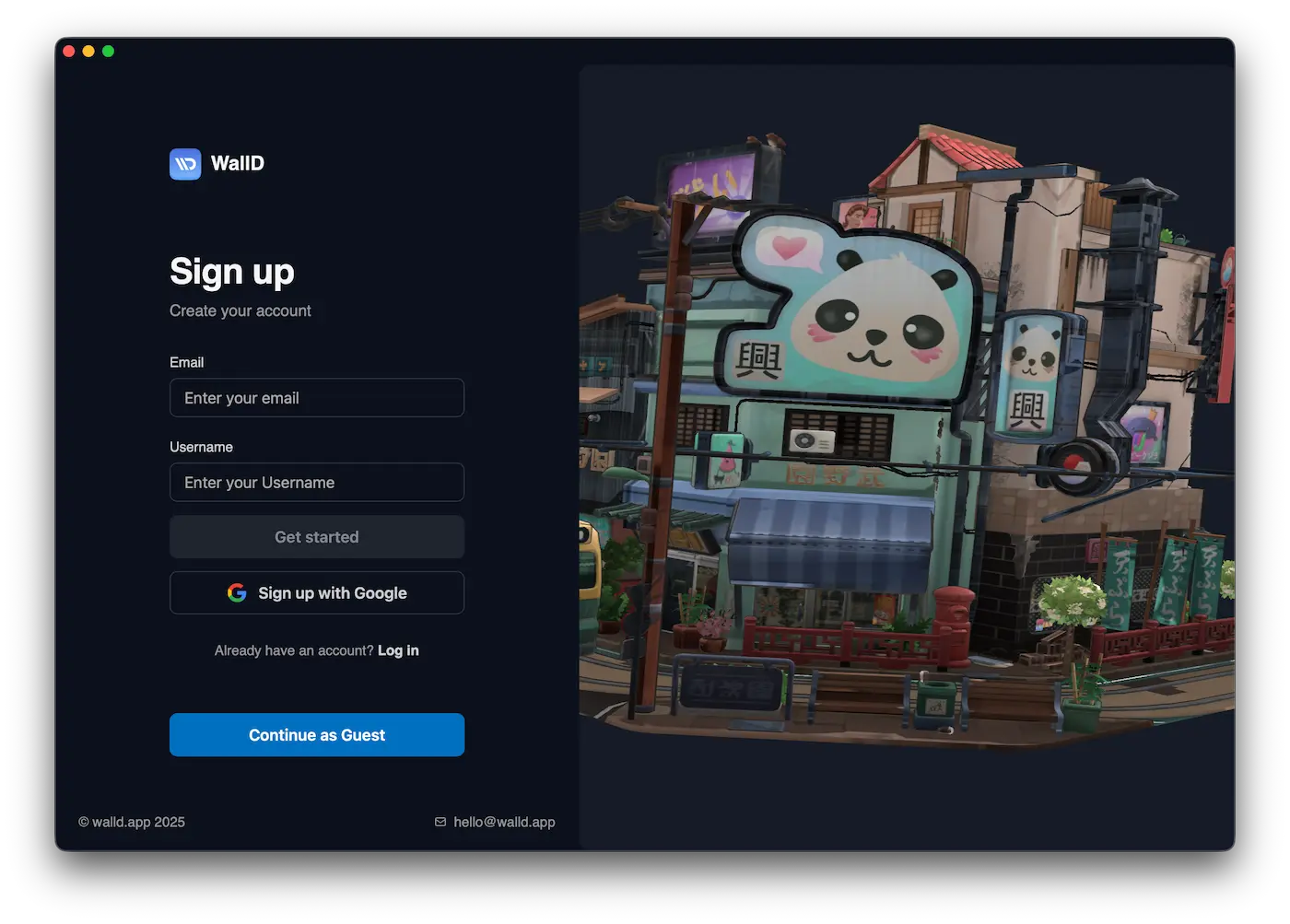
Signing up takes just seconds, or you can continue as a guest to keep browsing
Step 4 - Apply your first live wallpaper
You’re in! Browse the WallD library - static and animated 4K wallpapers from the community. Open any wallpaper to preview it, and you’re just two clicks away from a new desktop.
Opening a wallpaper shows its detail page, including preview, creator, tags, resolution, and file size. You'll see a blue Download Wallpaper button. Click it to save the wallpaper to your Mac.
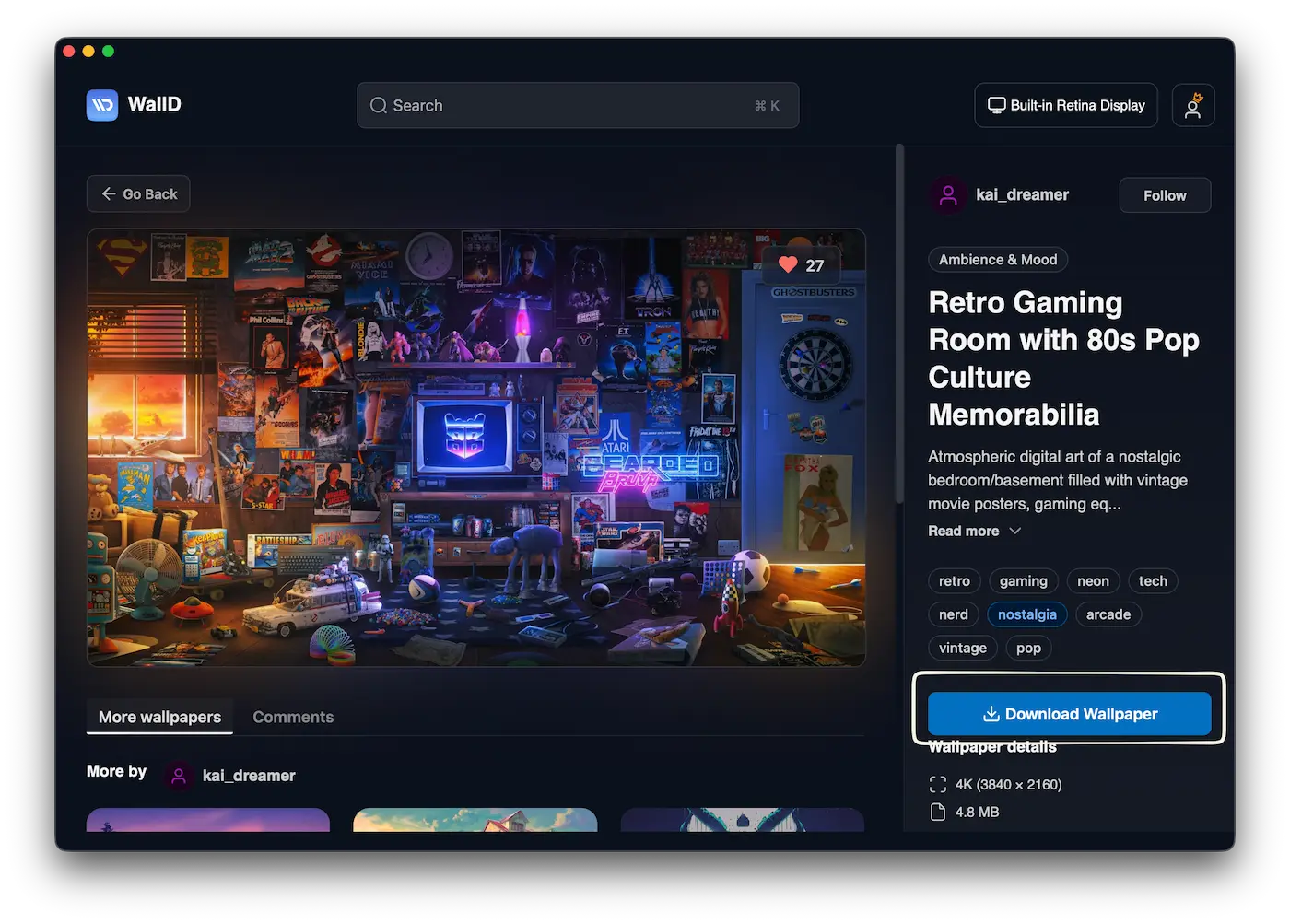
Click the blue "Download Wallpaper" button on any wallpaper detail page
Once the download finishes, the button turns green and becomes Apply Wallpaper. Click it and your Mac desktop updates instantly, no System Settings needed.
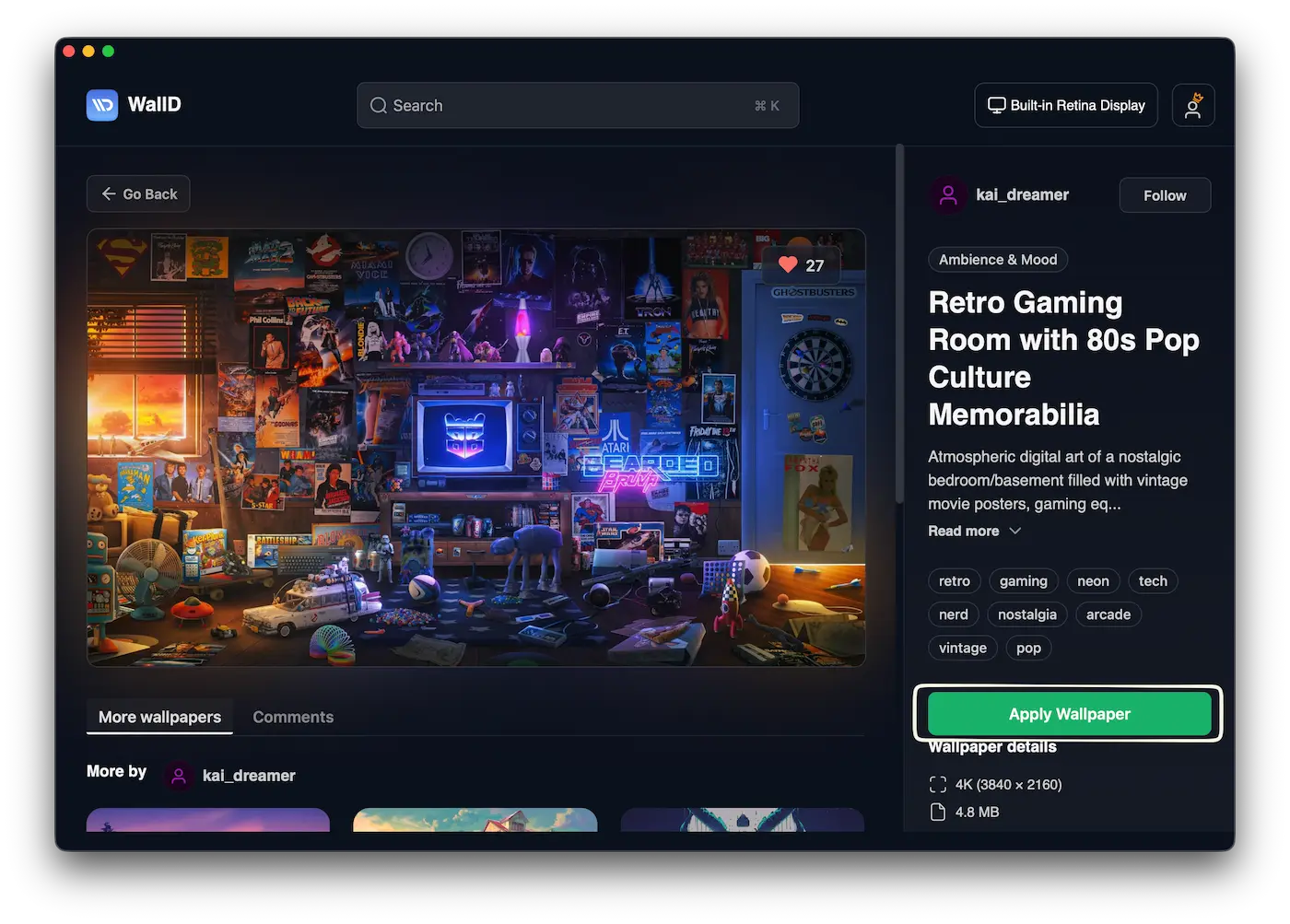
After download, click the green "Apply Wallpaper" button to set it live s
Download first, then Apply
The blue Download Wallpaper button saves the file to your Mac. Once downloaded, the button switches to green Apply Wallpaper. Click it to set it live on your desktop.
Minimize or close the app window and look at your Mac desktop. Your live wallpaper is running. WallD runs quietly in the background - you'll see the WallD icon in your Mac menu bar. Click it anytime to launch the app or browse the library.
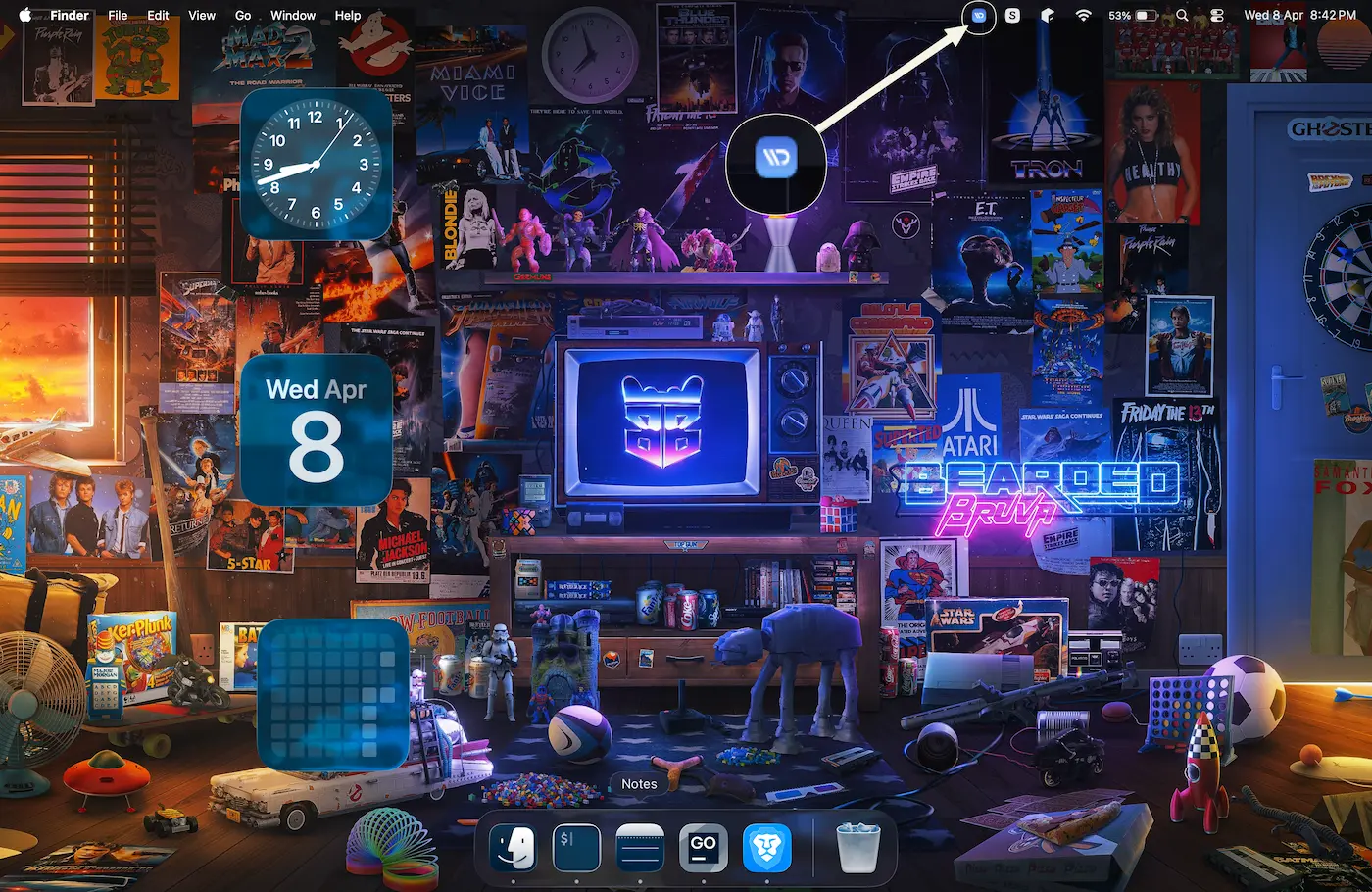
Your Mac desktop, now running a live wallpaper from WallD
Frequently asked questions
Do I need an account to browse WallD?
No. Visit walld.app and click Explore in the top navigation - this opens walld.app/explore where you can browse the full wallpaper feed without an account. You need an account and the WallD app to download and apply wallpapers.
Do I need the WallD app to apply wallpapers?
Yes. walld.app/explore is for browsing only. To download and apply wallpapers to your Mac desktop you need the WallD app, available free at walld.app.
Can I sign up inside the WallD app?
Yes. You don't need to create an account before downloading the app. When you open WallD, you can sign up with your email and username, or use Google sign-in, directly inside the app.
What is the difference between Download Wallpaper and Apply Wallpaper?
The steps happen in sequence. First, click the blue Download Wallpaper button to save the file to your Mac. Once the download is complete, the button turns green and becomes Apply Wallpaper - click it to set the wallpaper live on your desktop instantly.
Is WallD free?
Yes! Downloading the app, creating an account, and applying wallpapers are all free.
Do live wallpapers drain my Mac's battery?
WallD is optimized for macOS and runs smoothly even on MacBook laptops, with no excessive fan noise or battery drain. The app is built for Mac from the ground up, not ported from another platform.
WallD is currently Mac-first. Windows support is on the roadmap. Explore the community now.