
New to WallD
How to Apply Wallpaper on Your Mac Lock Screen with WallD: Static & Live
Step-by-step guide to setting static and live wallpapers on your macOS lock screen using WallD
 Anurag, founder of WallD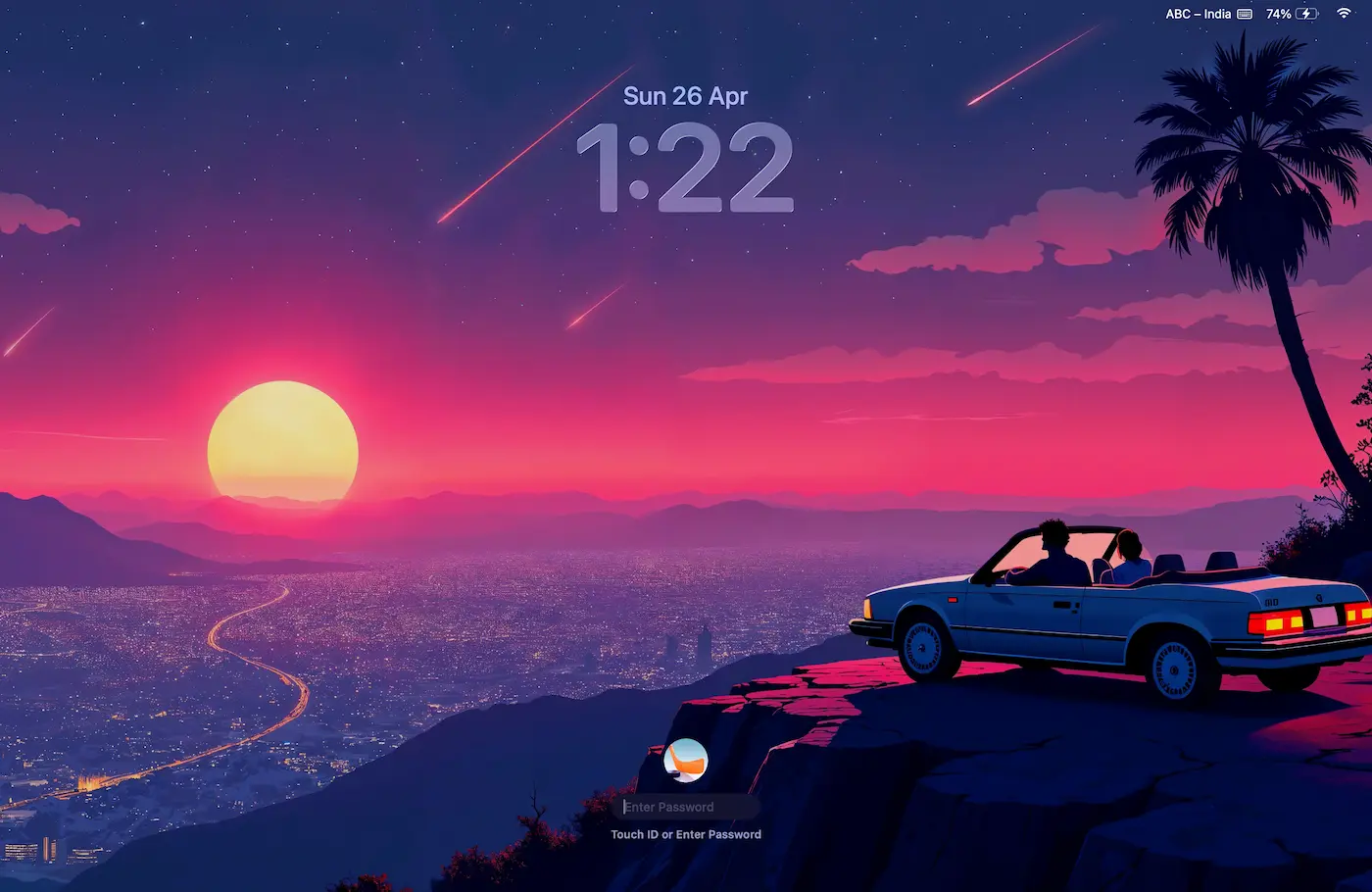
WallD lets you set both static and live wallpapers on your Mac lock screen. This guide walks you through enabling lock screen support and applying wallpapers step by step.
Lightweight & transparent
WallD is a single app - no hidden daemons, no kernel extensions, no background services you can't see. If you want it to start at login, just add it to your Login Items. Otherwise, it runs only when you choose.
Lock screen wallpapers are completely free - both static and live. No premium account required.
Lock Screen video playback currently requires macOS 26 or later. For the lock screen, it integrates with macOS by working alongside Apple's Aerial screensaver system. It feels native because it's built on native tech.
Step 1 - Enable Lock Screen in WallD settings
Before you can apply any wallpaper to your lock screen, you need to enable it in WallD settings.
Click the My profile icon in the top right corner of the WallD app.
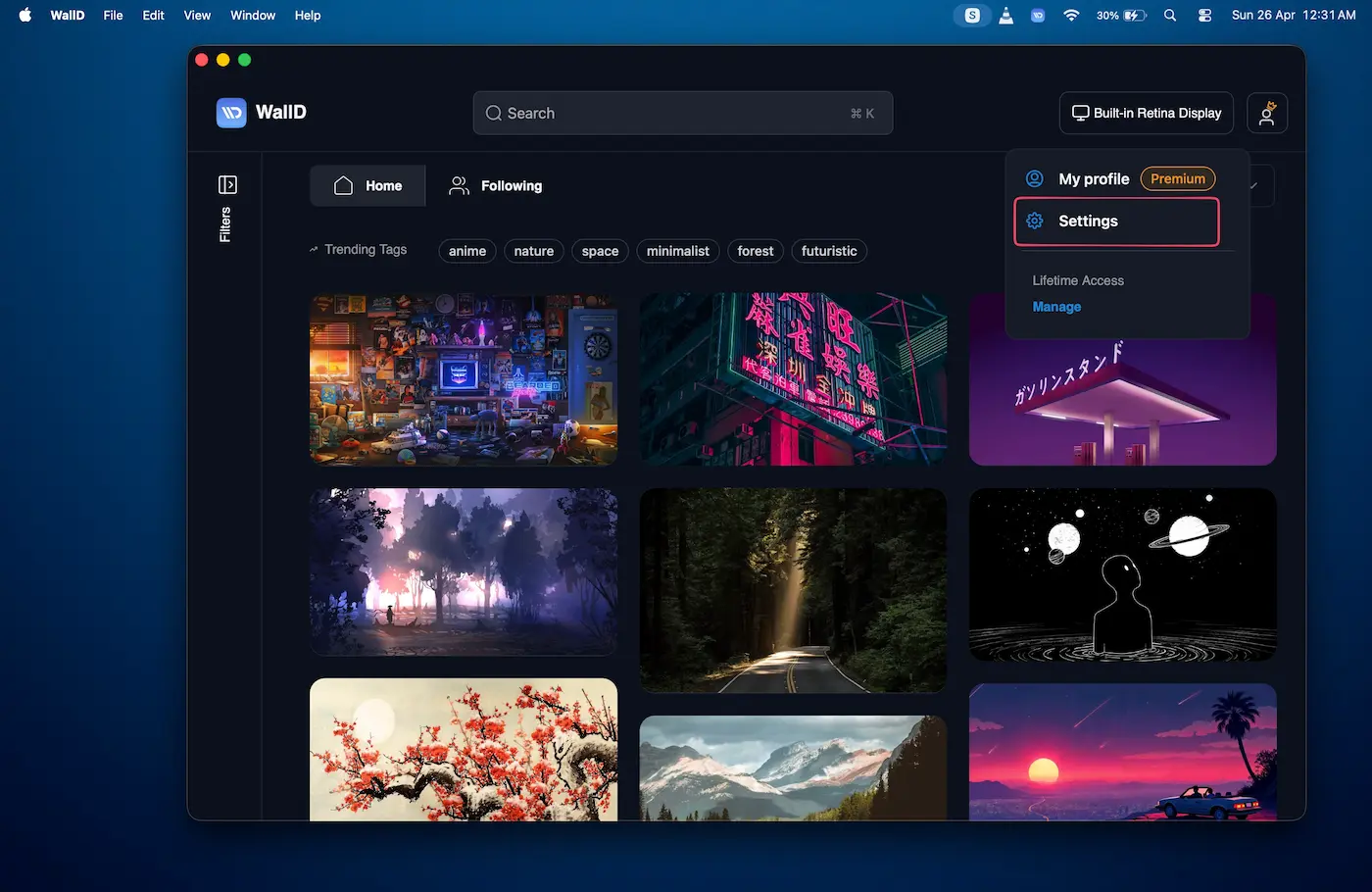
Select My profile to open the dropdown menu with Settings
From the dropdown, click Settings.
In the Settings panel, find the Lock Screen section. You will see the Enable Lock Screen toggle turned off by default.
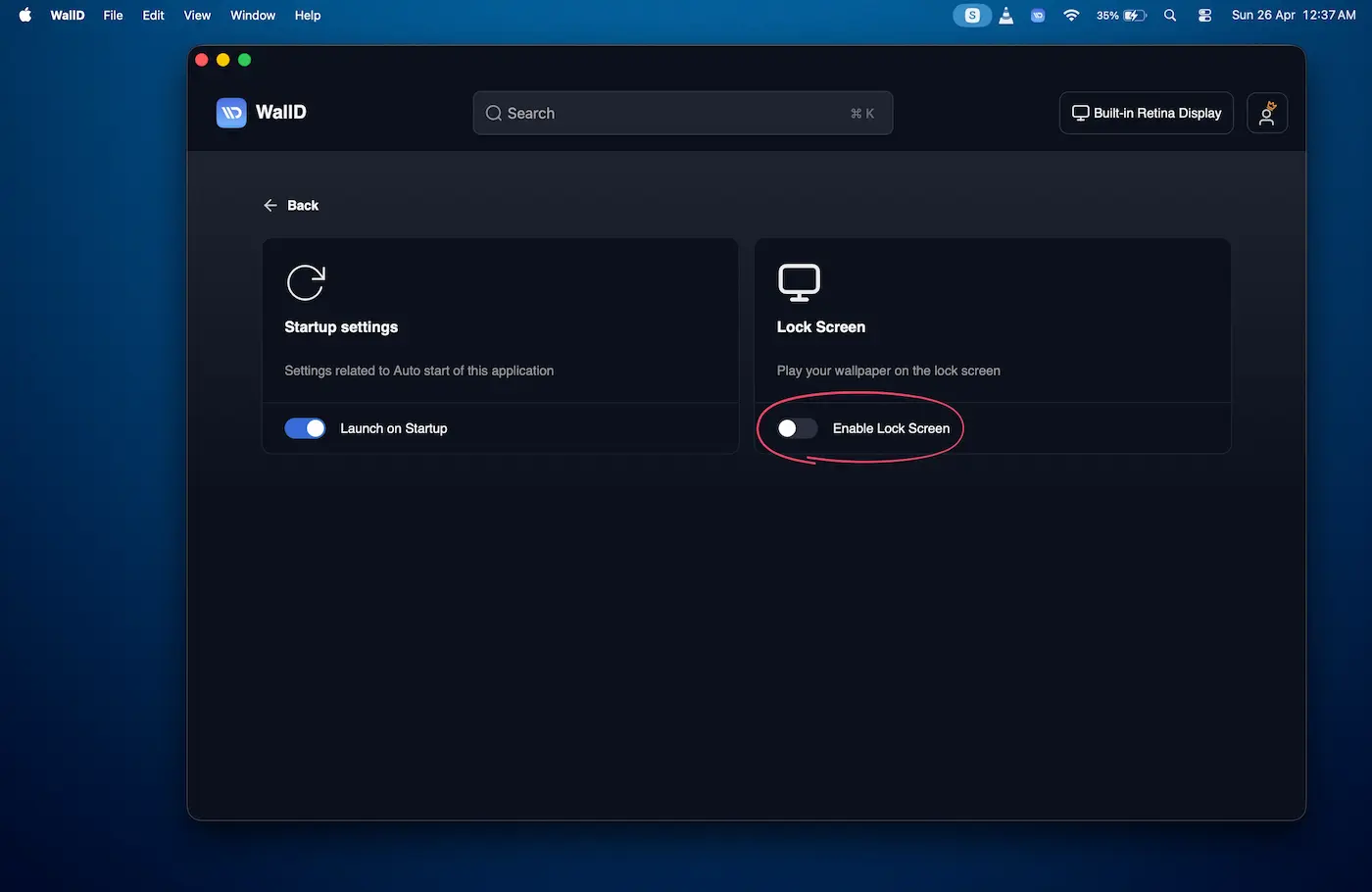
Lock Screen is disabled by default. Toggle it on to enable lock screen wallpapers
Turn the Enable Lock Screen toggle on. A set of setup steps appears:
- Open System Settings → Wallpaper
- Select WallD as your wallpaper
- Choose Show on all spaces
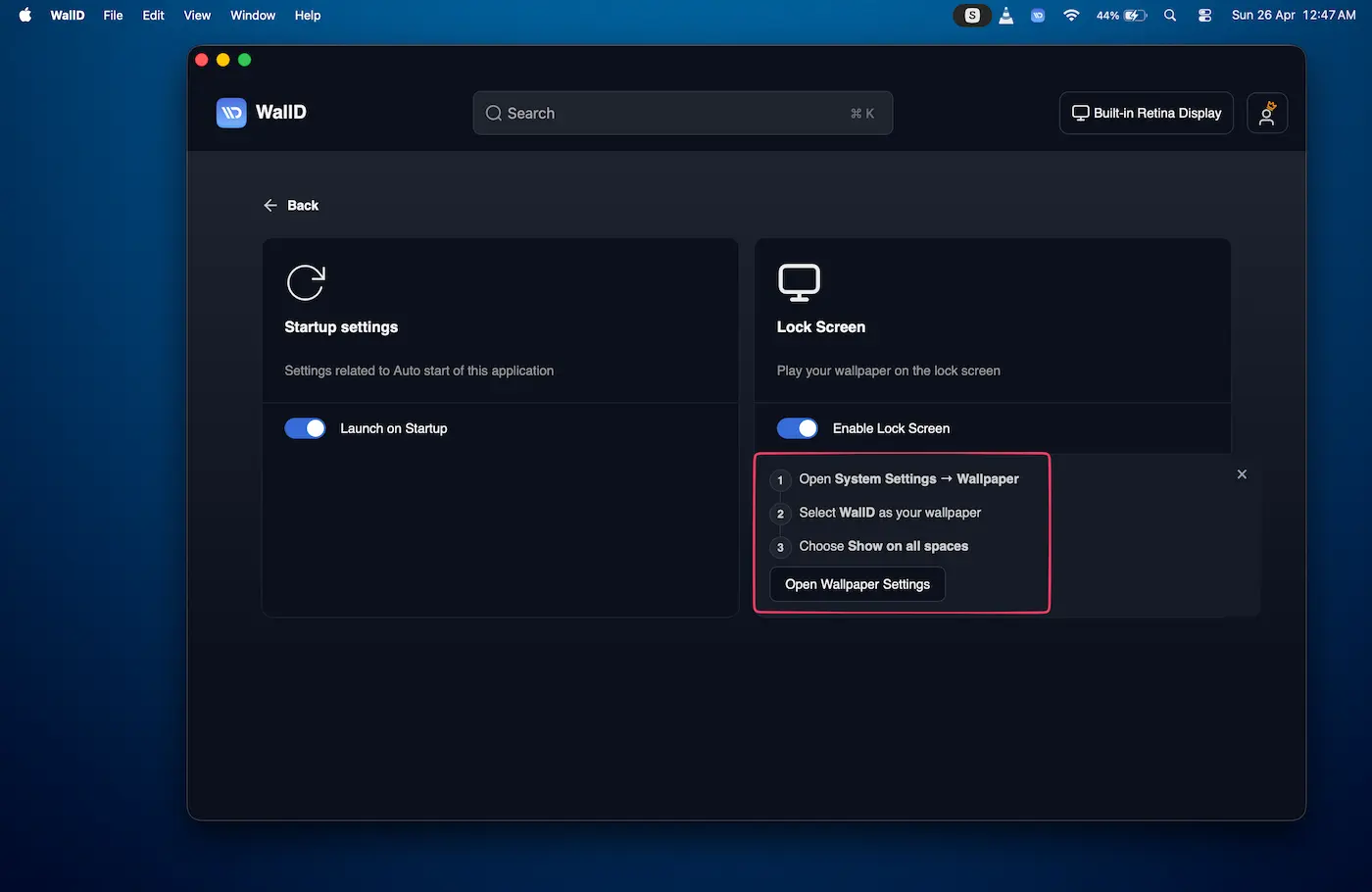
Steps appear after you enable Lock Screen. Click Open Wallpaper Settings to continue
Click Open Wallpaper Settings. This opens macOS System Settings → Wallpaper.
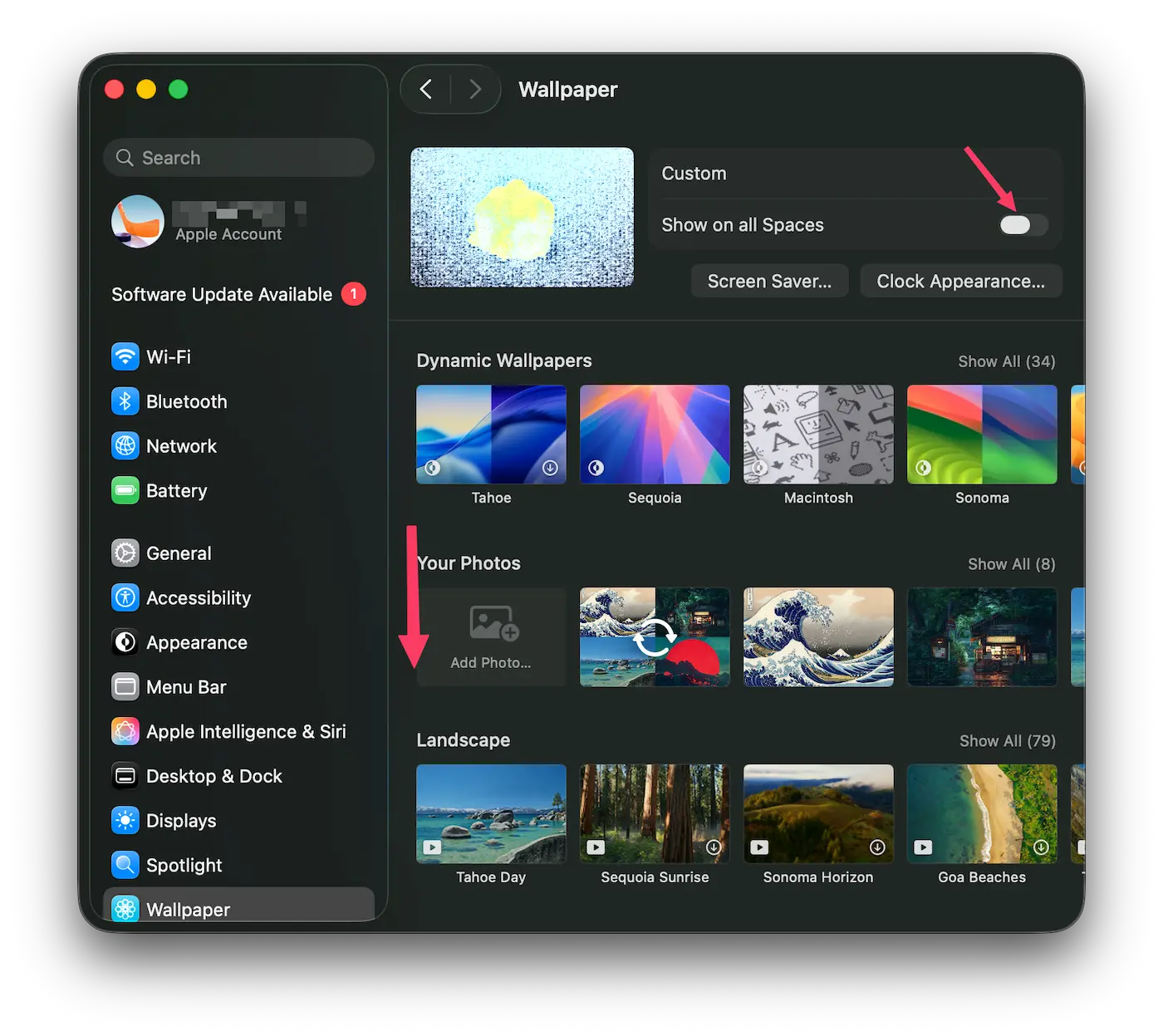
macOS Wallpaper settings open automatically
Scroll down to the WallD section and select it.
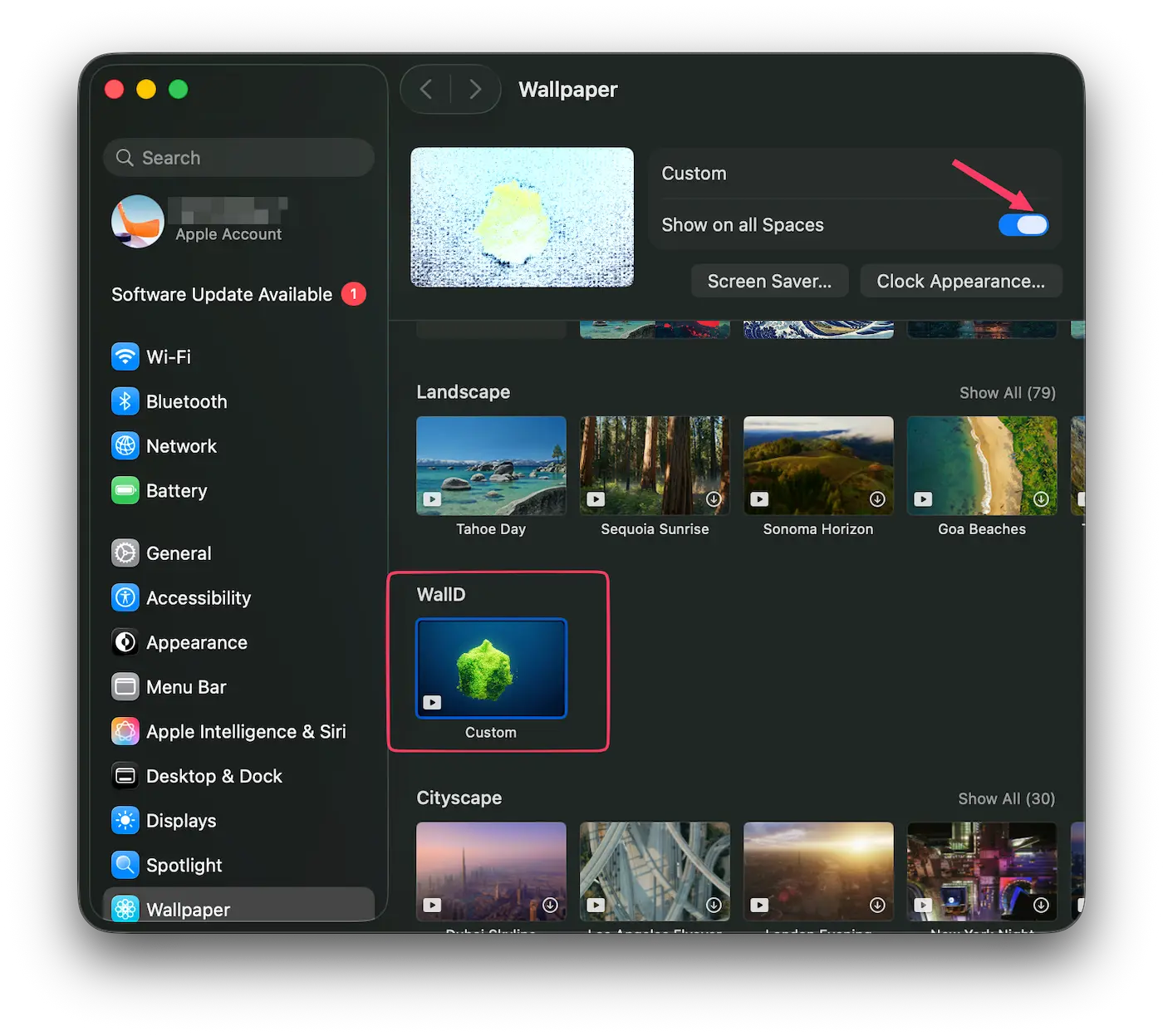
Scroll down and select WallD under the Wallpaper settings
Make sure Show on all Spaces is enabled. You are now ready to apply wallpapers to your lock screen.
Step 2 - Apply a live wallpaper to your lock screen
Browse the WallD library and open any live wallpaper. Click the blue Download Wallpaper button.
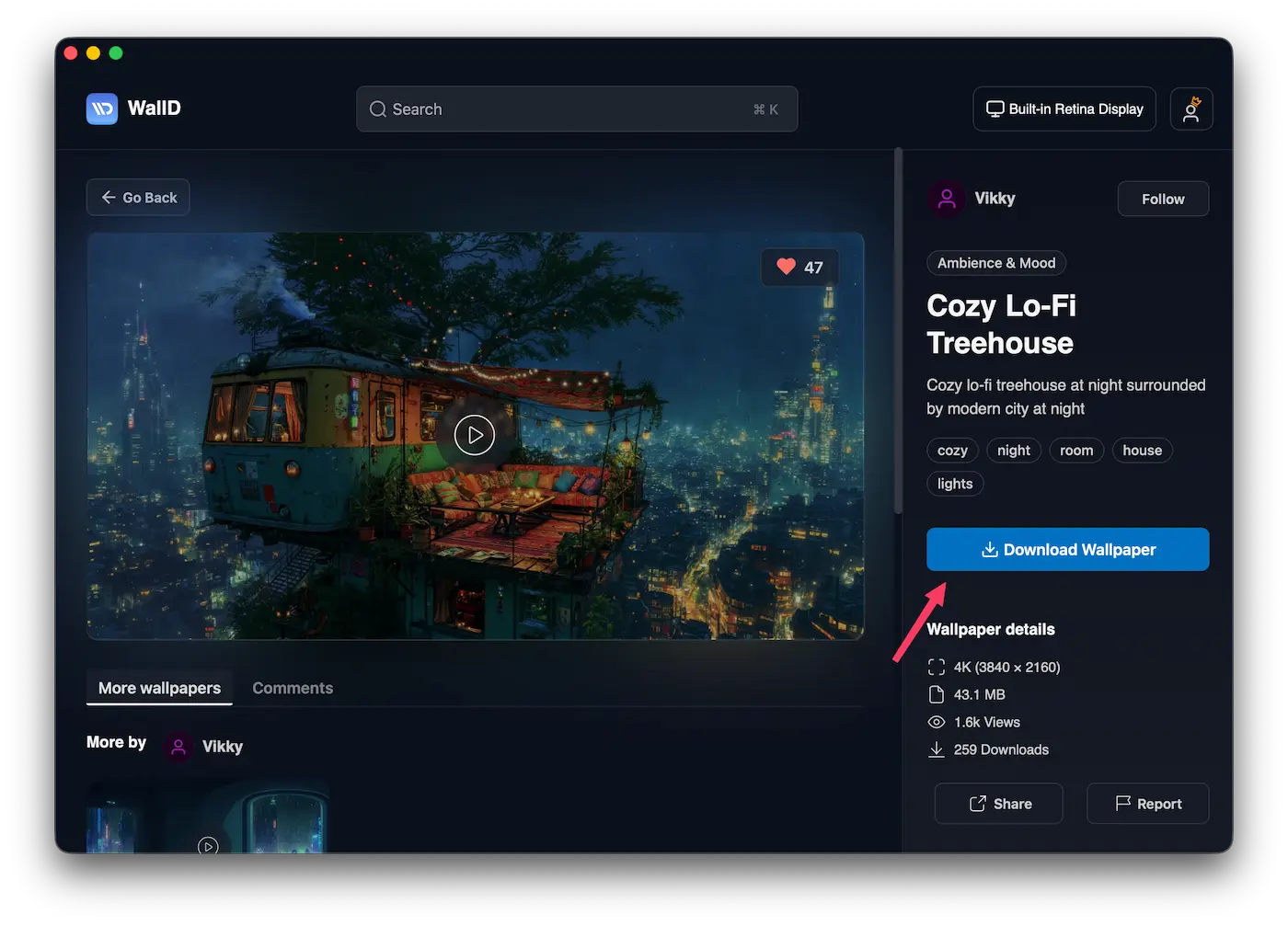
Click the blue Download Wallpaper button to save the wallpaper
If lock screen is not enabled, the Apply Desktop + Lock Screen option will be disabled and you will see Apply Desktop Only instead, along with a message: Enable lock screen in settings to apply.
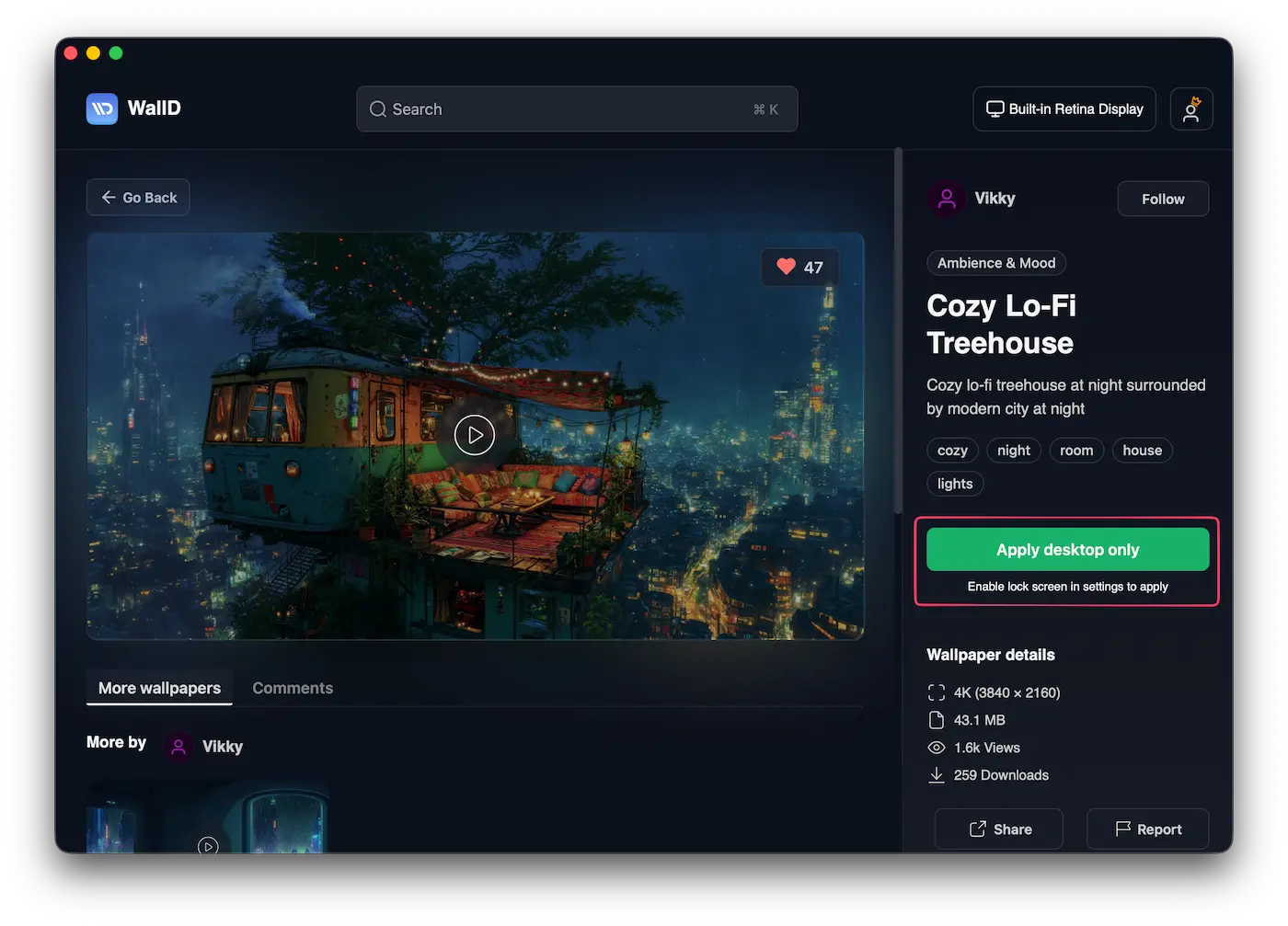
If you see this message, enable Lock Screen in Settings first
Once lock screen is enabled and you have downloaded the wallpaper, you will see two options:
- Apply Desktop + Lock Screen - applies the live wallpaper to both your desktop and lock screen
- Apply Desktop Only - applies the live wallpaper to your desktop only
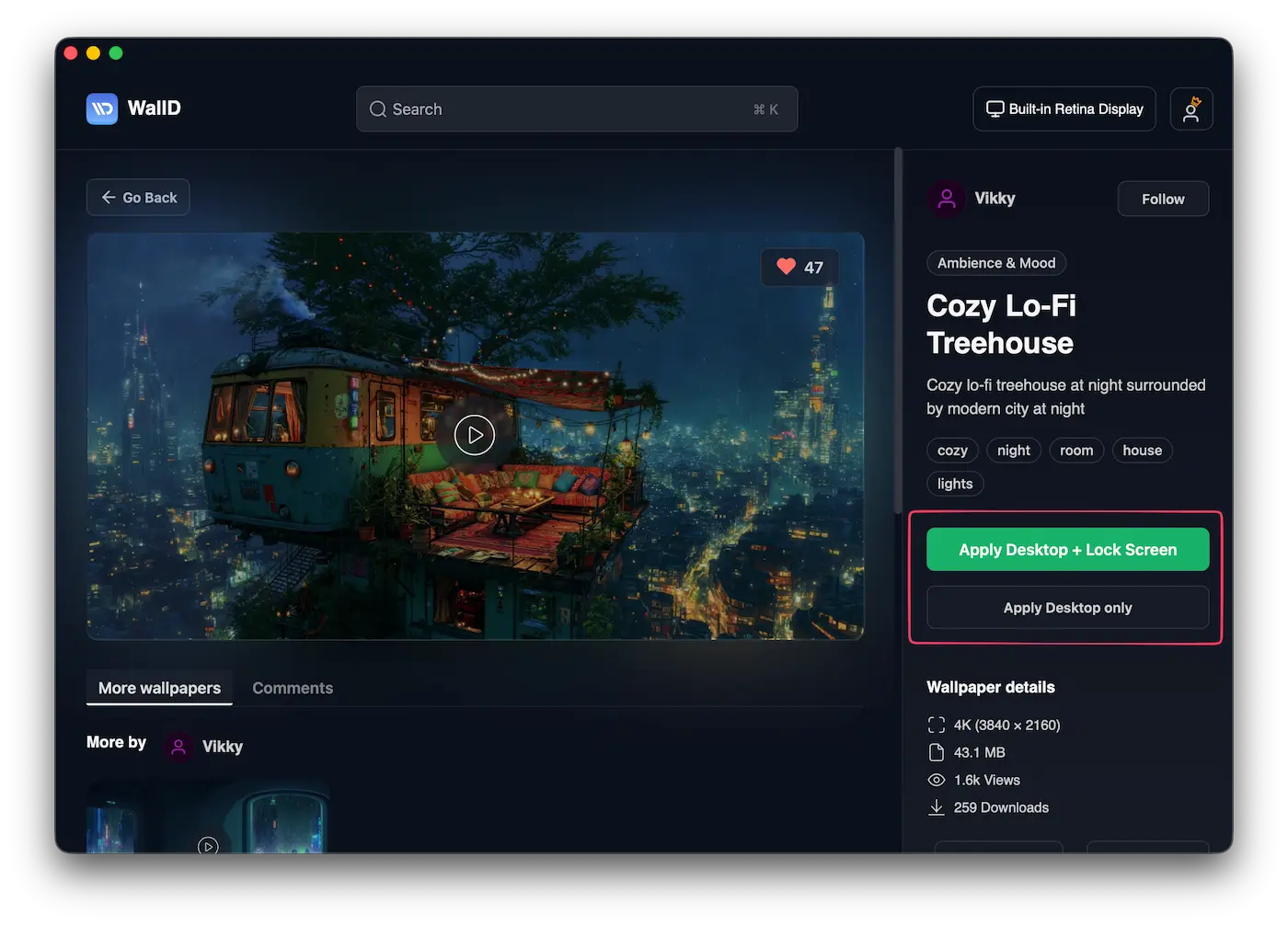
Choose Apply Desktop + Lock Screen to use the live wallpaper on both your desktop and lock screen
Click Apply Desktop + Lock Screen to set the live wallpaper on both screens.
Multi-monitor support for live wallpapers
WallD supports multi-monitor wallpapers on desktop, but lock screen wallpaper is applied to the primary display only.
Step 3 - Apply a static wallpaper to your lock screen
Browse the WallD library and open any static wallpaper. Click the blue Download Wallpaper button.
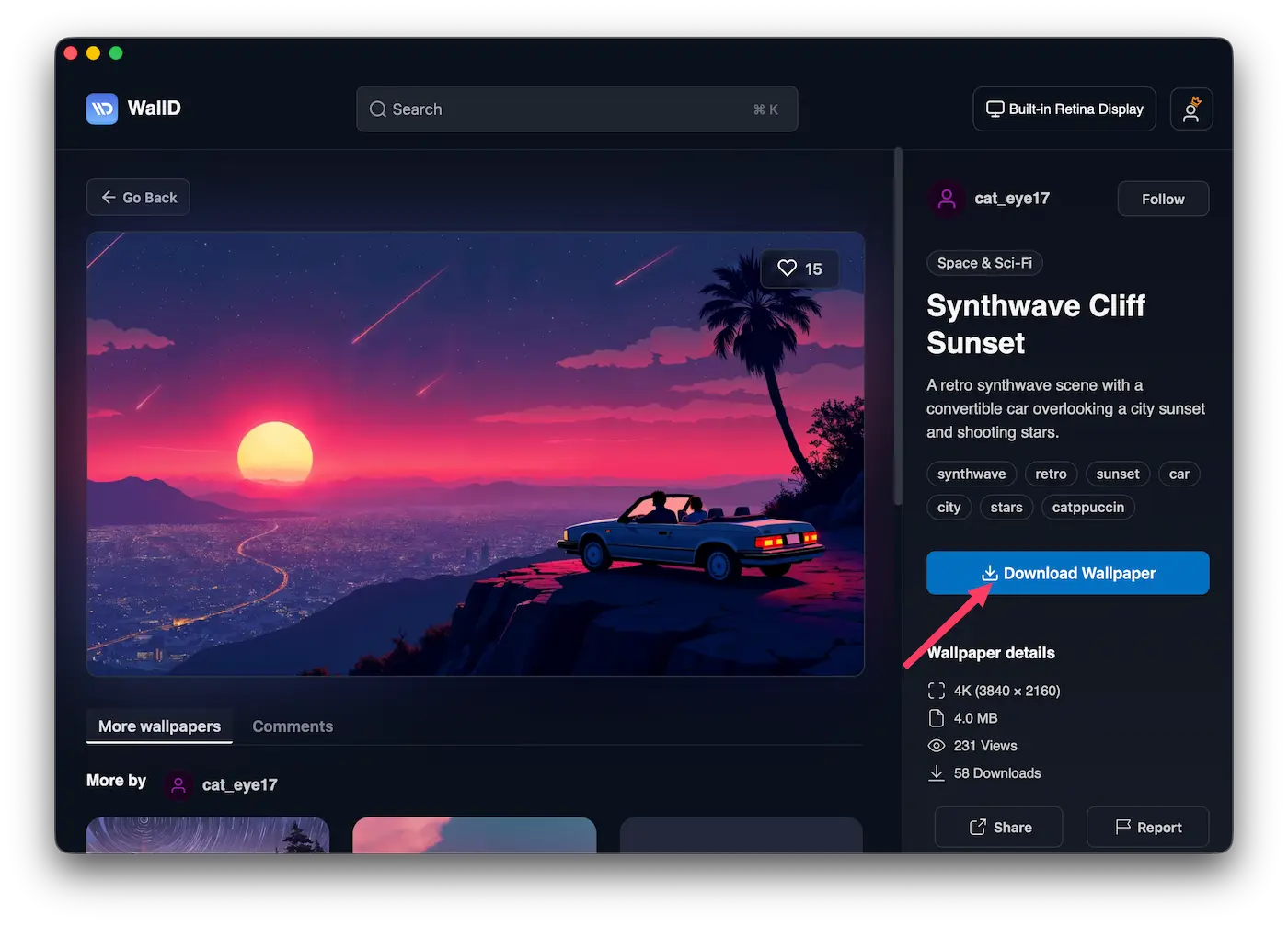
Click the blue Download Wallpaper button to save the wallpaper
If lock screen is not enabled, the Apply Desktop + Lock Screen button will be disabled after download.
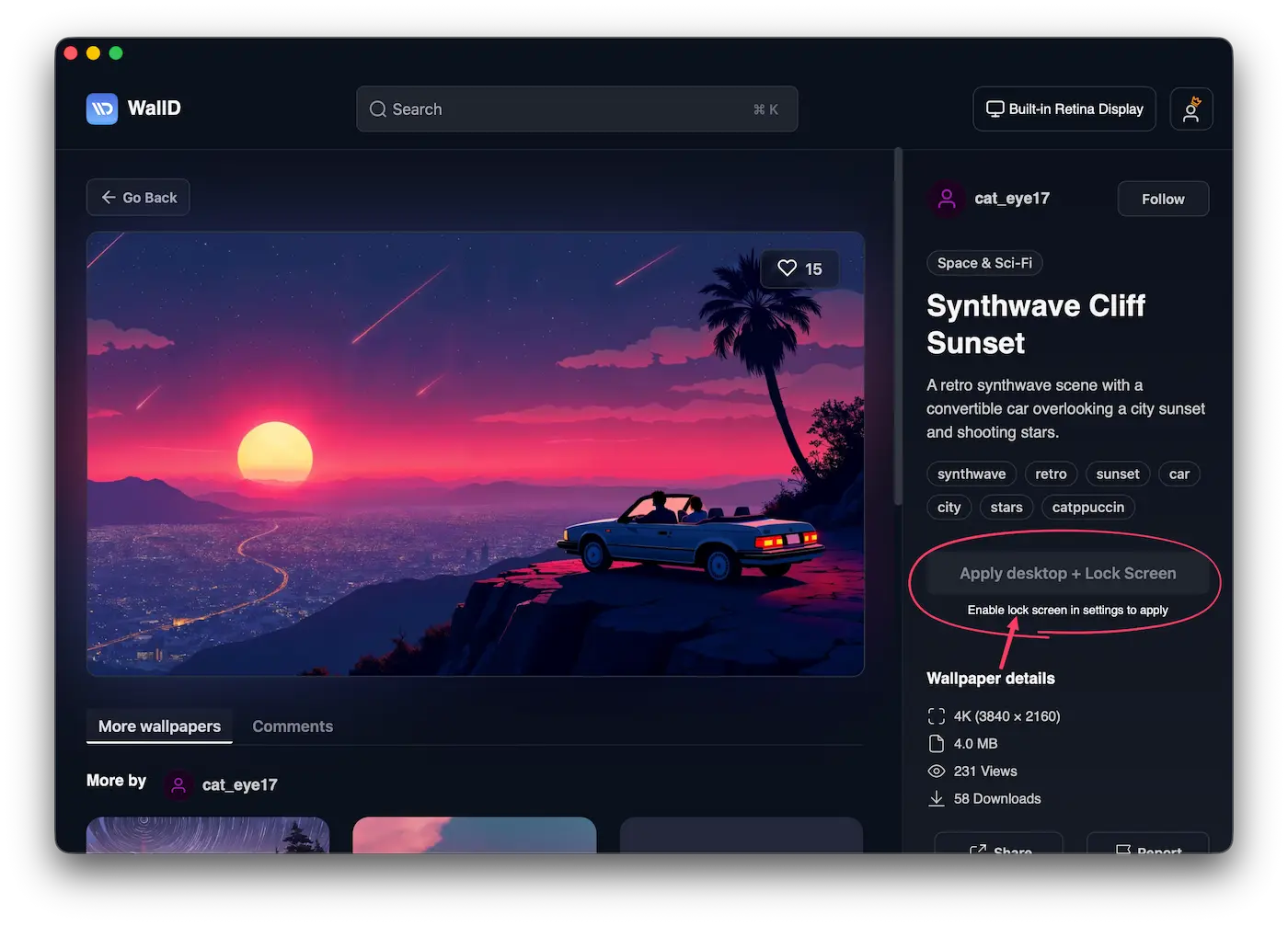
If you see this message, enable Lock Screen in Settings first
Once lock screen is enabled and you have downloaded the wallpaper, the Apply Desktop + Lock Screen button becomes active. Click it.
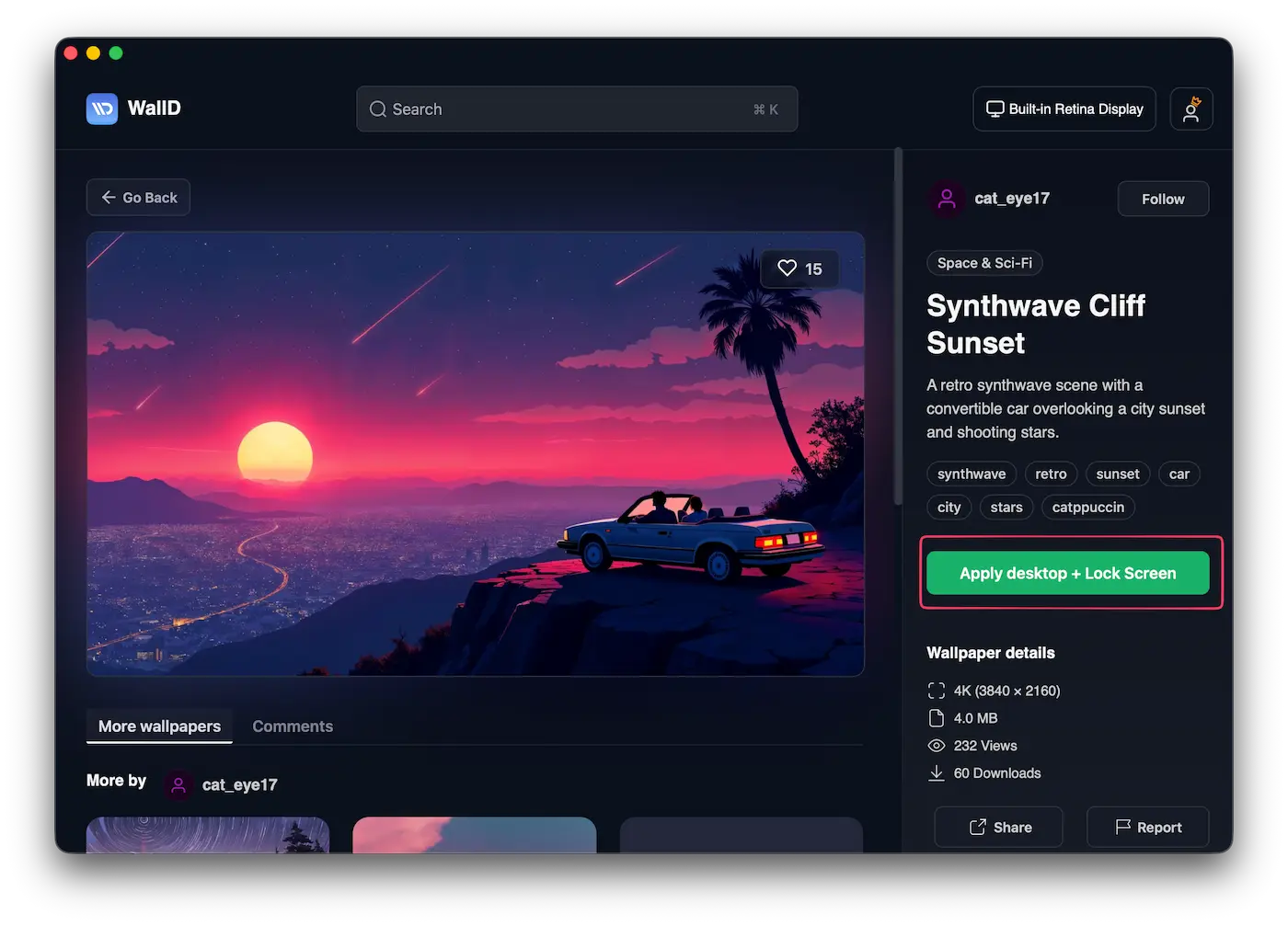
Click Apply Desktop + Lock Screen to set the same static wallpaper on all desktops and your lock screen
The same static wallpaper is applied to all your desktops and your lock screen.
A static wallpaper running on the macOS lock screen with WallD
Frequently asked questions
Do I need a premium account to use the lock screen feature?
No. The lock screen feature is completely free for all WallD users. No premium account is required.
Can I apply live wallpapers to my Mac lock screen with WallD?
Yes. After enabling lock screen in WallD settings and selecting WallD in macOS System Settings → Wallpaper, you can apply live wallpapers to both your desktop and lock screen.
Will lock screen wallpapers drain my battery?
Works with macOS, not against it. WallD leans on the frameworks already on your Mac - AVFoundation, CoreImage, CoreGraphics, CoreMedia - for smooth playback and efficient media handling. It integrates with macOS by working alongside Apple's Aerial screensaver system, so your lock screen animations feel built-in. CPU consumption stays below 3%. Native tech, assembled creatively.
Want more stunning wallpapers for your Mac? Browse the WallD library and find your next favorite background.