
New to WallD
How to Find Trending Wallpapers on WallD: Explore, Search & Discover
Your complete guide to the WallD explore dashboard - trending feed, search, filters, categories and creator profiles
 Anurag, founder of WallD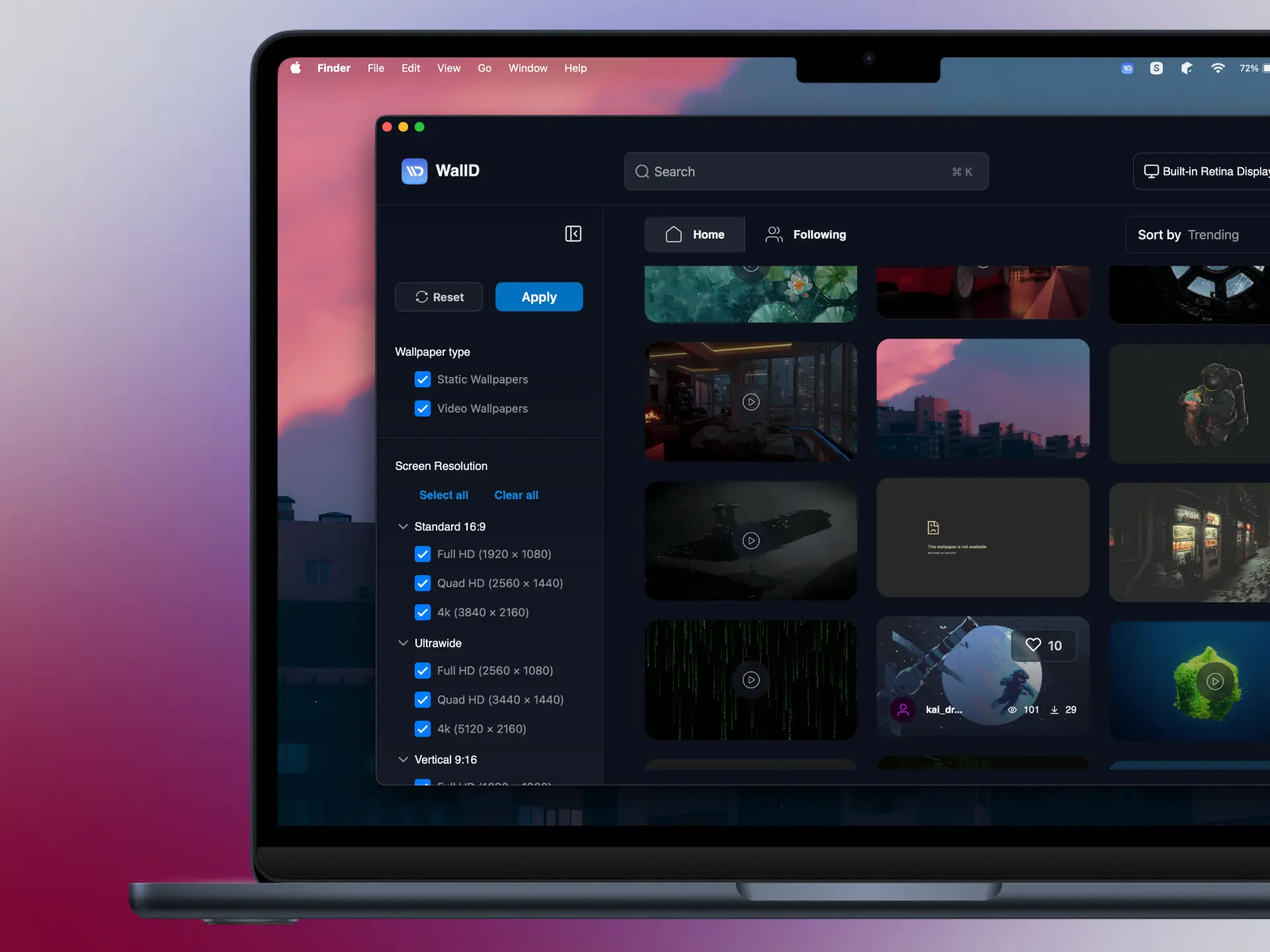
WallD has static and animated wallpapers across 15 categories, a growing community of creators and frequent uploads. Here is how to navigate it and find exactly what you want, whether you know what you are looking for or just want to explore.
Head to the explore feed to follow along. No account needed.
The trending feed - your starting point
The home feed is where most people start. It shows the community's best wallpapers right now, sorted by trending by default.
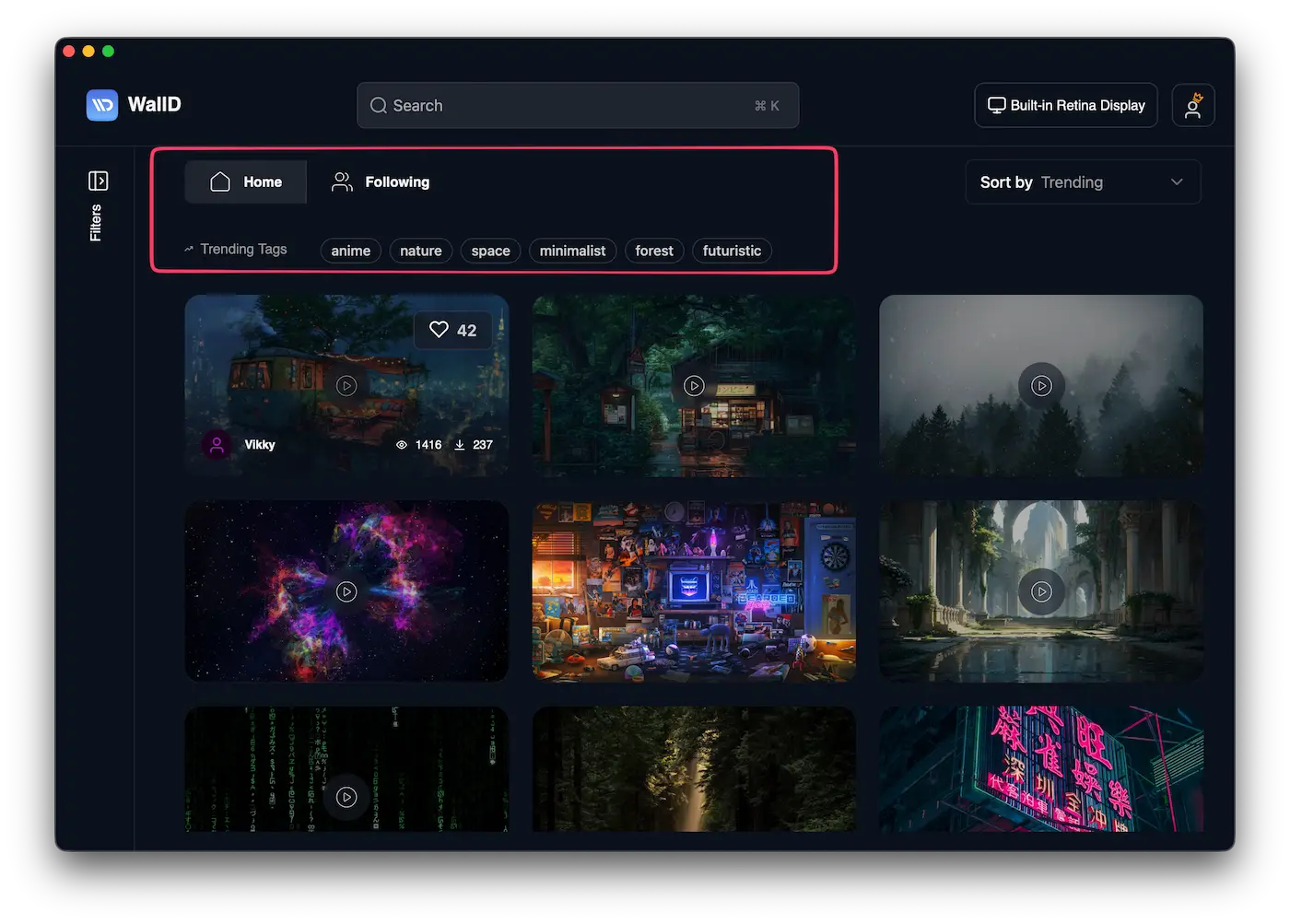
The WallD home feed lets you browse trending wallpapers without an account
At the top of the feed you will notice two things worth knowing:
Home vs Following - Home shows the full community feed. Following shows only wallpapers from creators you follow. If you are new, stick with Home until you have found creators you like.
Trending Tags - a row of tags reflecting what is popular right now: anime, nature, space, minimalist, forest, futuristic. Click any tag to instantly filter the feed to wallpapers with that tag. Fast way to narrow down a vibe without touching the filters.
Each wallpaper card shows the creator’s handle, view count, and download count, giving you a quick sense of quality before you even click.
Sort by - 5 ways to browse the feed
The Sort by dropdown in the top right gives you five options, each surfacing different content:
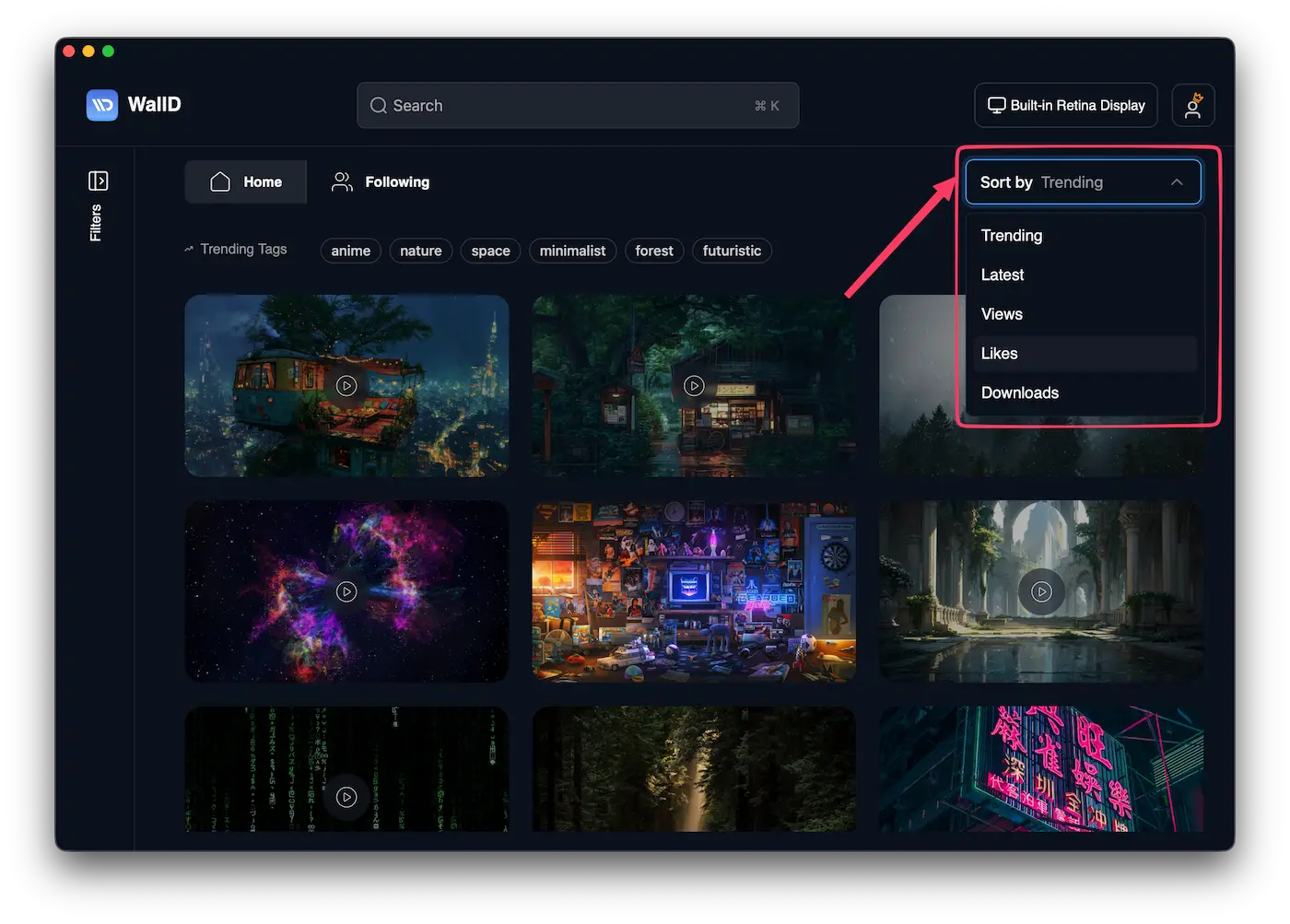
Sort by Trending, Latest, Views, Likes, or Downloads
- Trending - default, best mix of recent and popular
- Latest - newest uploads first, good for seeing what creators just posted
- Views - most-watched wallpapers of all time, reliable quality signal
- Likes - community favourites, tends to surface more emotional or atmospheric content
- Downloads - most applied wallpapers, the closest thing to a most popular list
If you’re new and feeling overwhelmed, Downloads is the safest place to start. These are the wallpapers real Mac users actually use on their desktops.
Search - find exactly what you want
The search bar works with tags, so just type a mood, style, or subject and WallD instantly filters the feed.
You can also click any tag on a wallpaper's preview page or dashboard page to search for that tag directly.
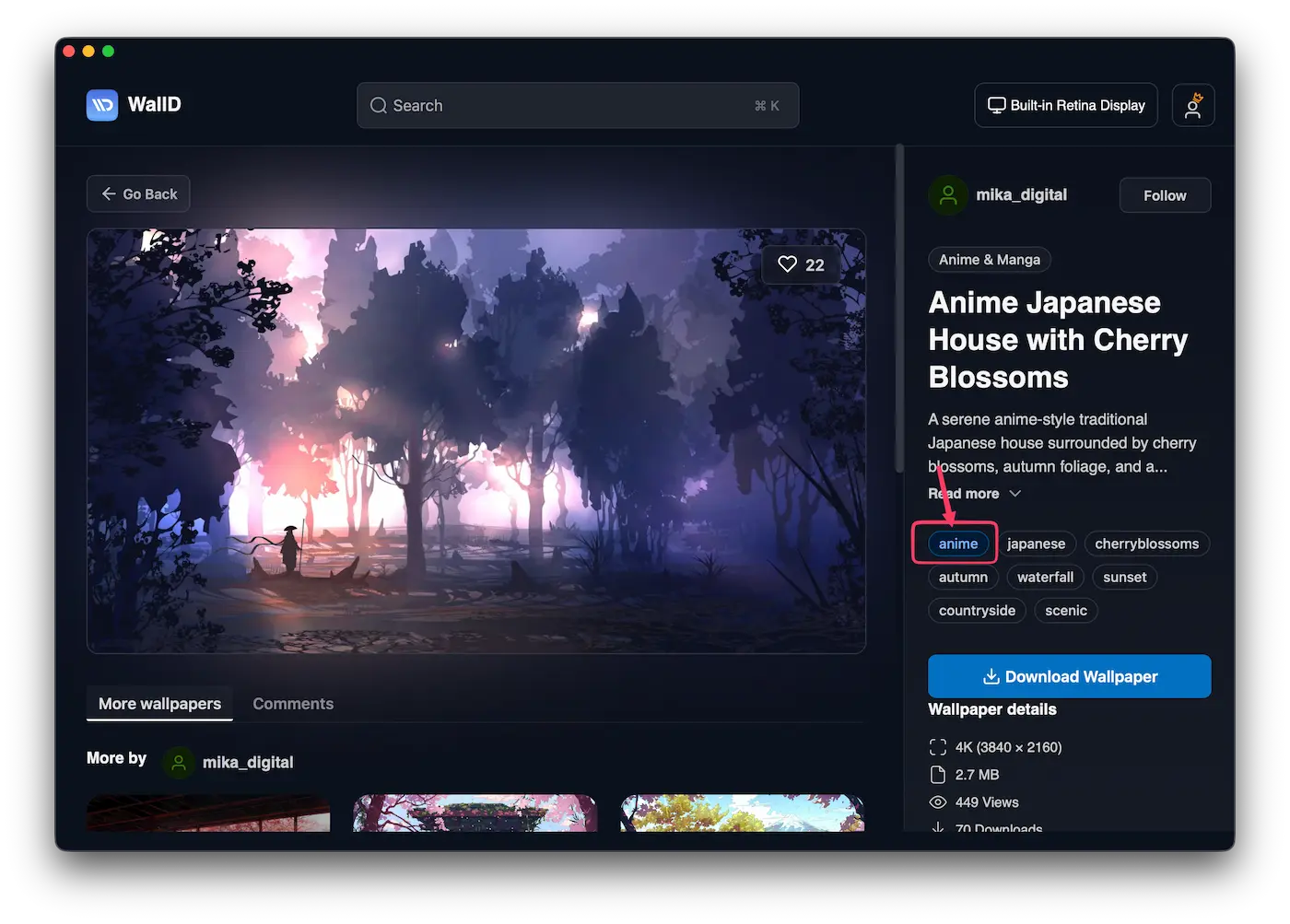
Click any tag on a wallpaper preview page to instantly search for that tag
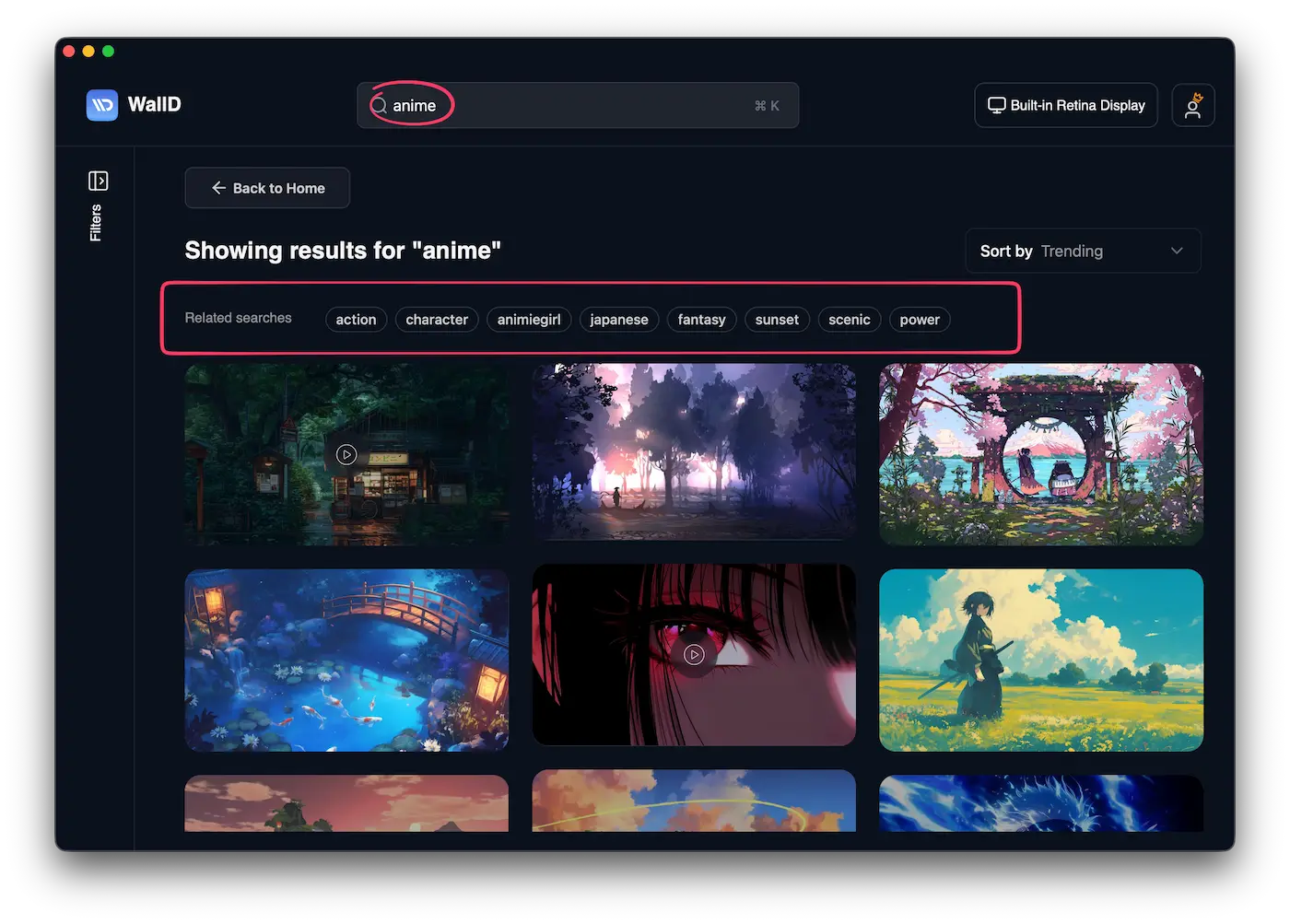
Search results for anime, with a related searches row underneath
Two things to notice on the search results page:
Related searches - a row of suggested tags appears below your query. Search anime and you will see action, character, animiegirl, japanese, fantasy, scenic, power. These are genuinely useful for discovering adjacent styles you might not have thought to search for.
The URL updates - searching updates the URL to include your query. You can bookmark searches or share them directly in browser.
Good searches to try: lofi, cyberpunk, forest, rain, neon, minimal, retro, city, ocean, dark.
Filters - narrow by type, resolution and category
The filter sidebar on the left gives you precise control over what appears in the feed. Click Apply after selecting to update results. Click Reset to clear all filters and return to the default view.
Wallpaper type
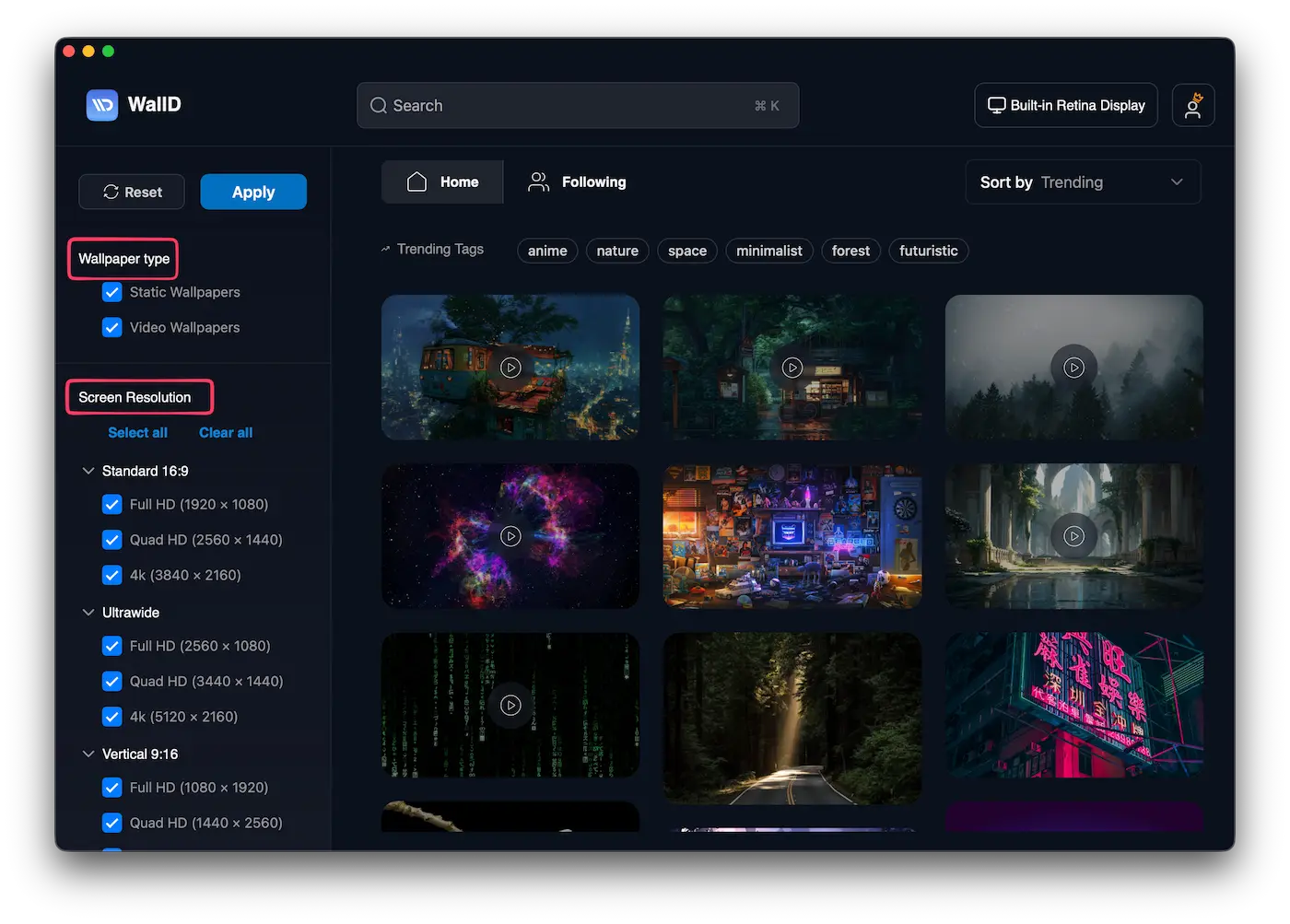
Filter by Static Wallpapers, Video Wallpapers, or both
Choose between Static Wallpapers, Video Wallpapers, or both. If you want a calm, non-moving desktop, static only. If you want something that moves, video only.
Screen resolution
Three aspect ratio groups, each with multiple resolutions:
- Standard 16:9 - Full HD (1920×1080), Quad HD (2560×1440), 4K (3840×2160)
- Ultrawide - Full HD (2560×1080), Quad HD (3440×1440), 4K (5120×2160)
- Vertical 9:16 - Full HD (1080×1920), Quad HD (1440×2560), 4K (2160×3840)
If you have a 4K display or an ultrawide monitor, filtering by resolution here means every wallpaper you see will fit your screen perfectly.
Category
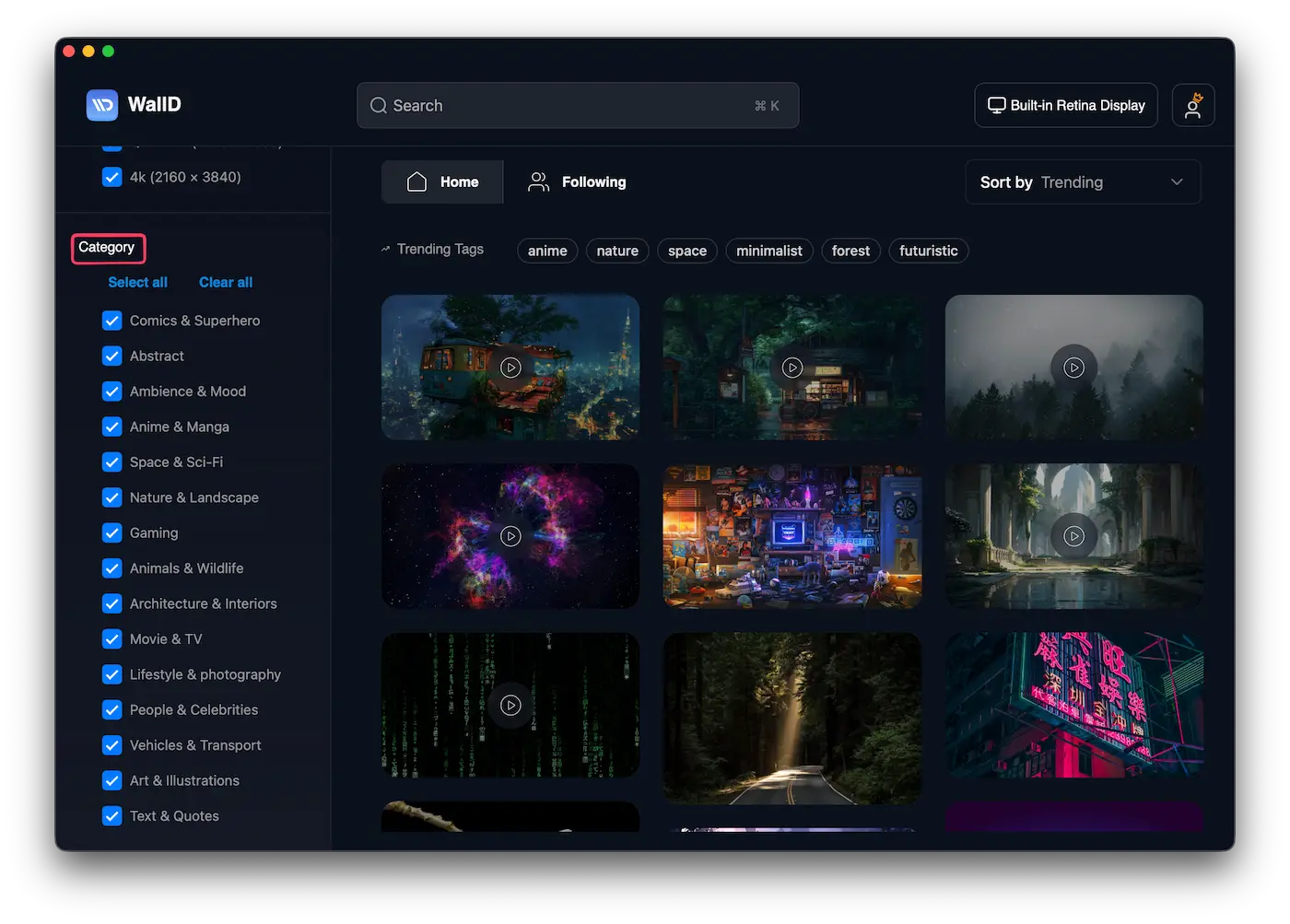
15 categories covering every wallpaper style
15 categories total - everything from Anime & Manga to Nature & Landscape, Gaming to Architecture. Select one category or combine several to narrow results.
For example: filter by Anime & Manga + sort by Downloads + 4K resolution to get the community's most-downloaded anime wallpapers in 4K.
Discover more - creators and related wallpapers
Once you find a wallpaper you like, the preview page becomes a discovery tool in itself.
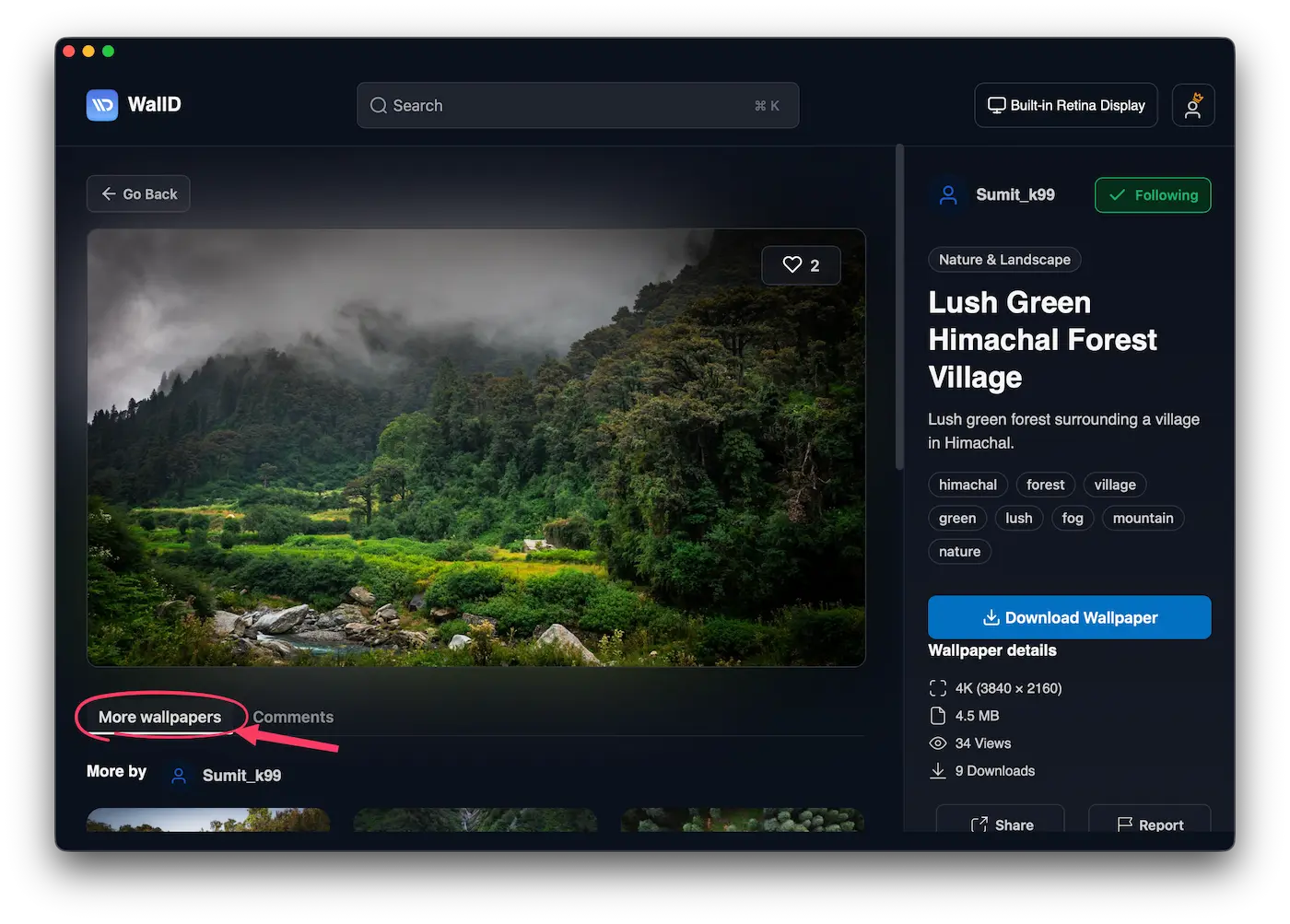
Click the More wallpapers tab on any preview page to see additional content
Scroll down and you will see two sections:
More by [creator] - other wallpapers from the same artist. If their style matches yours, this is the fastest way to build a personal collection.
Related wallpapers - similar wallpapers from other creators, surfaced by tag and style. One wallpaper can lead you to five others you would not have found by searching.
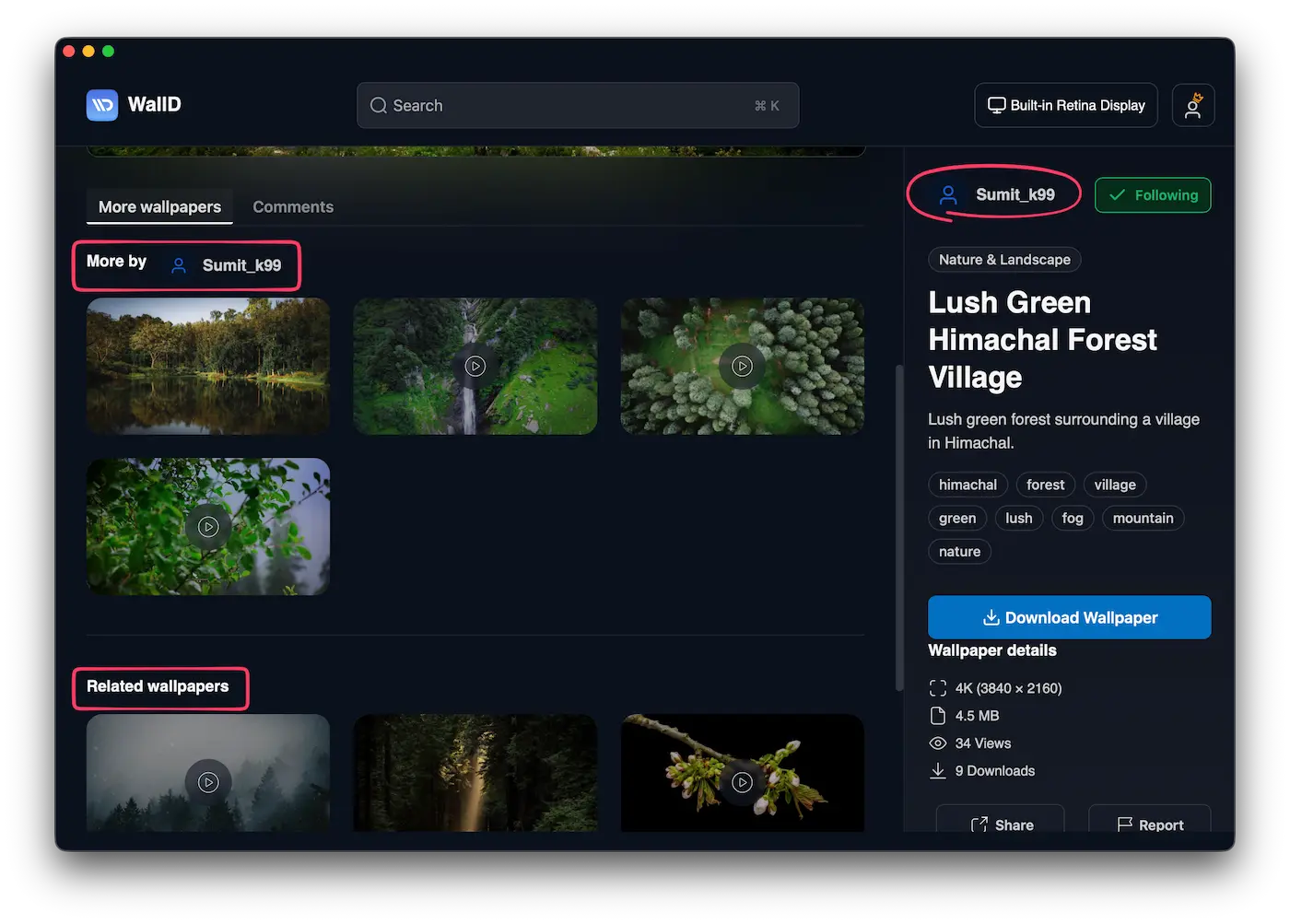
Scroll down to explore more from the same creator and discover similar wallpapers you might like.
Creator profiles - follow the artists you love
Every creator on WallD has their own profile page showing their full portfolio, total downloads, and follower count.
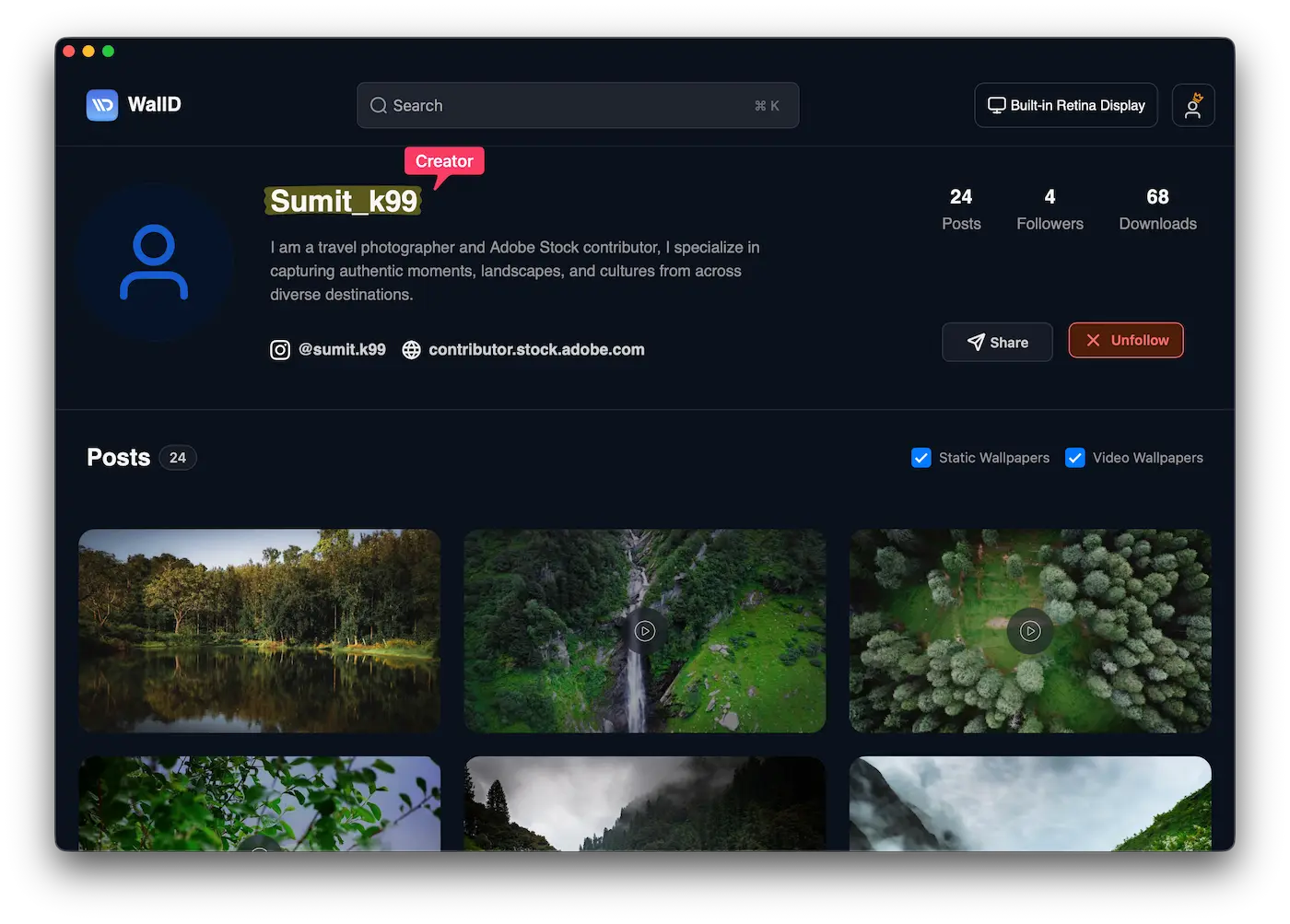
Each creator has their own profile where you can browse their full portfolio and follow them to never miss a new upload.
Click any creator's name on a wallpaper card or preview page to visit their profile. You can see everything they have posted, how popular their work is, and follow them so their next upload appears in your Following feed automatically.
Frequently asked questions
How do I find anime wallpapers on WallD?
Search "anime" in the search bar or select the Anime & Manga category in the filter sidebar. You can also click the anime trending tag on the home feed to filter instantly.
How do I find 4K wallpapers for Mac on WallD?
Open the filter sidebar and select 4K under Standard 16:9, or 4K under Ultrawide. All results will match your screen resolution.
What wallpaper categories does WallD have?
15 categories: Comics & Superhero, Abstract, Ambience & Mood, Anime & Manga, Space & Sci-Fi, Nature & Landscape, Gaming, Animals & Wildlife, Architecture & Interiors, Movie & TV, Lifestyle & Photography, People & Celebrities, Vehicles & Transport, Art & Illustrations, and Text & Quotes.
Can I filter by static or video wallpapers?
Yes. The Wallpaper type filter lets you show only Static Wallpapers, only Video Wallpapers, or both.
Can I browse a specific creator's wallpapers?
Yes. Every creator has their own profile page with their full portfolio. Click any creator name on a wallpaper card or preview page to visit it.
How do I sort wallpapers on WallD?
Use the Sort by dropdown - Trending, Latest, Views, Likes, or Downloads. For new visitors, Downloads is the most reliable quality signal.
Found something you want on your desktop? Download the WallD app free for Mac.